
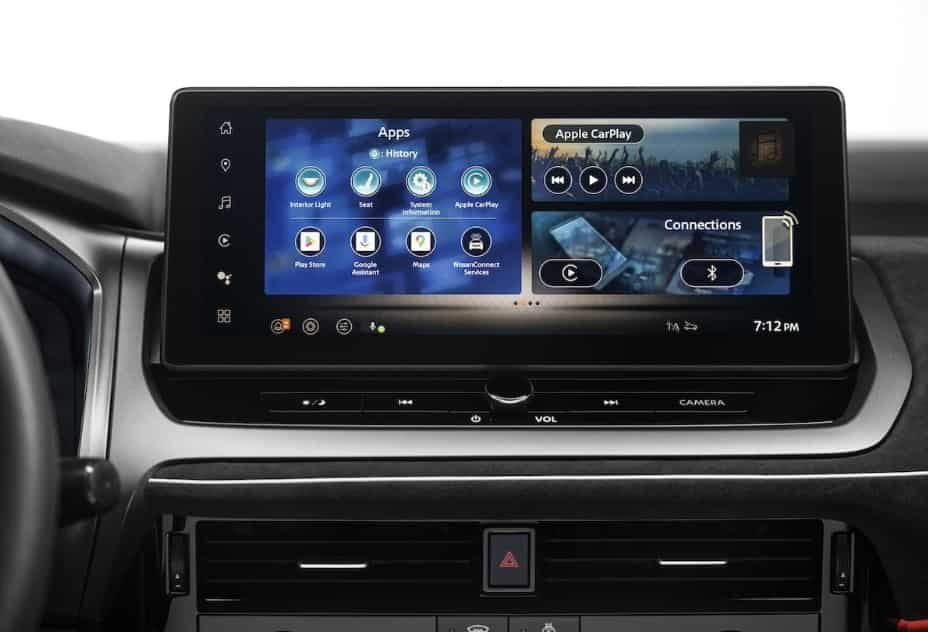
NissanConnect allows Nissan vehicle owners to access connected features, smartphone applications, and digital services through their vehicle’s infotainment system. However, adding apps to NissanConnect does not work the same way as installing applications on a smartphone. Most NissanConnect systems use smartphone integration technologies such as Apple CarPlay and Android Auto to display compatible apps on the vehicle touchscreen.
To add apps to NissanConnect, users need to understand how NissanConnect Services, mobile devices, and compatible applications work together. The setup process depends on the Nissan model, infotainment system version, smartphone type, and available connectivity features.
This guide explains how to add apps to NissanConnect, how to connect smartphone applications, which apps are compatible, and how to solve common connection problems. It also explains the difference between NissanConnect built in services and smartphone based app integration, helping drivers choose the correct setup method for their vehicle.
Whether you want to use navigation apps, music streaming services, communication tools, or Nissan connected features, understanding the NissanConnect ecosystem makes the setup process faster and easier.
How Do You Add Apps To NissanConnect?
You add apps to NissanConnect by connecting compatible smartphone applications through NissanConnect, Apple CarPlay, or Android Auto. NissanConnect does not work like a traditional smartphone app store.
The system connects your vehicle with your phone and digital services. It helps drivers use navigation, music, communication, and other supported features while driving.
The setup process depends on your Nissan model and infotainment system. Some Nissan vehicles include built in NissanConnect Services. Other models mainly use smartphone integration features.
You need three things before adding apps to NissanConnect. First, check if your Nissan vehicle supports the required feature. Second, connect a compatible smartphone. Third, install supported apps on your phone.
For example, a driver can open Google Maps through Android Auto. An iPhone user can access Apple Maps through Apple CarPlay. These apps run on the smartphone but appear on the Nissan touchscreen.
NissanConnect uses this approach because smartphones already provide frequent app updates. Drivers can access newer app versions without changing the vehicle software.
The connection method depends on the Nissan model. Some vehicles require a USB cable. Newer models support wireless smartphone connections. The owner manual shows the correct setup method for each vehicle.
Before connecting apps, check your phone compatibility and NissanConnect features. This step prevents common issues such as connection failures, missing apps, or unavailable functions.
Does NissanConnect Allow You To Download Apps Directly?
NissanConnect does not allow users to download unlimited apps directly like a smartphone. The system focuses on connected vehicle services and smartphone integration instead of direct app installation.
Nissan designed NissanConnect as a bridge between the vehicle and digital services. The system connects the infotainment screen with supported applications from a driver’s smartphone. This method allows drivers to use familiar apps without creating a separate app marketplace inside the vehicle.
The available features depend on the Nissan model, software version, and connected services package. Some Nissan vehicles include NissanConnect Services with built in features such as remote vehicle access, vehicle information, and navigation support. Other features depend on Apple CarPlay or Android Auto.
For example, drivers usually cannot download Spotify or Google Maps directly into the NissanConnect system. Instead, they install these apps on their smartphone and connect the phone to the vehicle. NissanConnect then displays compatible functions through the infotainment screen.
This approach gives drivers several advantages. Smartphone applications receive updates from Apple or Google, so users can access newer features without waiting for vehicle software changes. It also keeps the Nissan infotainment system focused on safe driving functions.
If a user cannot find an app on the NissanConnect screen, the issue often comes from compatibility limitations. The app may not support vehicle integration, the smartphone may not connect correctly, or the Nissan model may not support that feature.
Understanding this difference helps Nissan owners choose the correct setup method. Instead of searching for a direct download option, users should check NissanConnect compatibility and connect supported smartphone applications.
How Do You Connect Smartphone Apps To NissanConnect?
You connect smartphone apps to NissanConnect by pairing a compatible phone with your Nissan infotainment system. The connection method depends on whether you use an iPhone or an Android smartphone.
NissanConnect works with smartphone integration systems to bring selected applications to the vehicle display. The main connection options include Apple CarPlay for iPhone users and Android Auto for Android users. These systems allow drivers to access navigation, music, calls, and messaging features while keeping phone usage safer.
Before connecting apps, users should check three requirements. The Nissan vehicle must support smartphone integration. The smartphone must use a compatible operating system. The required application, such as Apple CarPlay or Android Auto, must also be available on the device.
The connection process usually starts by turning on the vehicle and opening the Nissan infotainment system. The driver then connects the smartphone through a USB cable or wireless connection, depending on the vehicle model. After the system recognizes the device, supported applications appear on the NissanConnect screen.
For example, a driver can connect an iPhone and use Apple CarPlay to access Apple Maps, Messages, and Apple Music. An Android user can connect Android Auto to use Google Maps, Google Assistant, and Spotify. The vehicle screen displays these applications while the smartphone manages the app functions.
A stable connection depends on several factors. Users need updated smartphone software, compatible apps, and a working USB cable when a wired connection is required. If NissanConnect does not recognize the phone, checking these three areas usually helps identify the problem.
How Do You Connect An iPhone To NissanConnect Using Apple CarPlay?
You connect an iPhone to NissanConnect by pairing the device with Apple CarPlay through a USB cable or wireless connection. Apple CarPlay allows iPhone users to access supported apps through the Nissan infotainment display.
The connection process starts with checking compatibility between the iPhone and Nissan vehicle. Most newer Nissan models support Apple CarPlay, but available features depend on the vehicle model year and infotainment system. Users should check their Nissan owner manual to confirm Apple CarPlay support.
To connect an iPhone, first turn on the vehicle and activate the NissanConnect system. Next, connect the iPhone using a compatible USB cable or enable wireless pairing if the vehicle supports it. The iPhone will ask for permission to use Apple CarPlay, and the Nissan screen will display supported applications after approval.
Apple CarPlay does not install apps into NissanConnect. Instead, it mirrors selected iPhone applications that support vehicle integration. Drivers can use apps such as Apple Maps, Apple Music, Messages, and supported third party navigation or audio applications.
For example, a Nissan owner can open Apple Maps on the vehicle touchscreen while the iPhone handles the navigation data. The driver can also use Siri voice commands to make calls, send messages, or control music without touching the phone.
If Apple CarPlay does not connect, users should check four common areas: iPhone software updates, USB cable quality, Bluetooth settings, and NissanConnect compatibility. Restarting both the iPhone and the vehicle infotainment system can also resolve temporary connection problems.
Keeping the iPhone updated improves compatibility with NissanConnect because Apple regularly releases software updates that affect CarPlay performance. A properly connected iPhone gives Nissan drivers access to essential apps while maintaining a safer driving experience.
How Do You Connect An Android Phone To NissanConnect Using Android Auto?
You connect an Android phone to NissanConnect by pairing the device with Android Auto. Android Auto allows drivers to access compatible smartphone applications through the Nissan infotainment system.
The connection process depends on the Nissan vehicle model, Android version, and NissanConnect system. Most compatible Nissan vehicles allow Android users to connect their phones through a USB cable. Some newer models also support wireless Android Auto connections.
Before starting the setup, users should check three requirements. The Nissan vehicle must support Android Auto. The Android phone must run a compatible operating system. The phone must also have the required Android Auto features enabled.
To connect an Android phone, turn on the vehicle and open the NissanConnect infotainment system. Connect the smartphone with a supported USB cable or activate wireless pairing if available. The Android device will request permission to access Android Auto, and the Nissan screen will show supported applications after approval.
Android Auto does not download applications directly into NissanConnect. Instead, it transfers supported smartphone functions to the vehicle display. The phone continues running the applications while NissanConnect provides a safer interface for drivers.
For example, an Android user can access Google Maps for navigation, Spotify for music streaming, and Google Assistant for voice commands. The driver can search destinations, control media, and manage communication features through the Nissan touchscreen or steering wheel controls.
Connection problems usually happen because of outdated software, unsupported apps, damaged USB cables, or incorrect phone settings. Updating the Android operating system and checking Android Auto permissions can solve many common issues.
A properly connected Android phone expands NissanConnect functionality by combining smartphone applications with vehicle controls. This setup gives drivers access to useful digital services while reducing the need to handle their phones during driving.
What Apps Are Compatible With NissanConnect?
NissanConnect supports compatible smartphone applications that work through connected services, Apple CarPlay, and Android Auto. The available apps depend on the Nissan model, smartphone platform, and application support.
NissanConnect does not support every mobile application because vehicle systems prioritize safe and useful driving functions. Supported apps usually focus on four main categories: navigation, music, communication, and vehicle services. These categories help drivers access important information without using their phones directly while driving.
Navigation apps are among the most commonly used applications with NissanConnect. Drivers can use mapping services to find locations, check traffic conditions, and receive turn by turn directions. Examples include Google Maps through Android Auto and Apple Maps through Apple CarPlay.
Music and audio applications provide entertainment during driving. Popular compatible services include Spotify, Apple Music, and other supported streaming platforms. These apps allow users to control playlists, change songs, and manage audio settings through the Nissan touchscreen or voice commands.
Communication applications help drivers manage calls and messages safely. Supported features include hands free phone calls, voice messaging, and contact access. Apple CarPlay users can use Siri, while Android users can use Google Assistant to control communication features.
Vehicle related applications provide additional Nissan connected features. Depending on the vehicle and subscription plan, NissanConnect Services may include functions such as remote vehicle access, vehicle status information, and service notifications.
App compatibility changes over time because smartphone companies and vehicle manufacturers update their software regularly. Users should check Nissan compatibility information before installing or connecting an application. This step helps prevent problems caused by unsupported apps or outdated software.
Understanding compatible applications helps Nissan owners choose the right tools for their driving needs. Instead of installing unnecessary apps, drivers can focus on applications that improve navigation, entertainment, communication, and vehicle management.
How Do You Set Up NissanConnect Services On Your Vehicle?
You set up NissanConnect Services by creating a Nissan account, downloading the NissanConnect app, pairing your vehicle, and activating available connected features. NissanConnect Services connects your vehicle with digital tools that improve remote access and vehicle management.
The setup process starts with checking whether your Nissan vehicle supports NissanConnect Services. Availability depends on the vehicle model, model year, region, and selected service package. Some vehicles include features such as remote vehicle access, vehicle status updates, and maintenance notifications.
To begin the setup, users need to create or sign in to a Nissan account. The account links the owner’s information with the vehicle identification number and connected services. This connection allows Nissan systems to recognize the vehicle and provide access to available features.
After creating an account, users can download the NissanConnect app on their smartphone. The app acts as a control center for connected vehicle functions. Drivers can use it to check vehicle information, manage selected remote features, and receive important notifications.
The next step involves pairing the smartphone with the Nissan vehicle. Users usually enter vehicle details, follow activation instructions, and confirm the connection through the infotainment system. A successful setup allows the NissanConnect app and vehicle system to exchange information.
For example, some Nissan owners can use NissanConnect Services to check vehicle status before a trip. They may view information such as fuel level, vehicle location, or service alerts through the mobile application.
Users should keep the NissanConnect app updated because software updates improve performance and add compatibility improvements. They should also confirm that their connected services subscription remains active because some features require a current service plan.
A complete NissanConnect Services setup gives drivers access to more than smartphone apps. It creates a connection between the Nissan vehicle, mobile device, and connected services ecosystem, making daily vehicle management more convenient.
Why Can’t You Add Apps To NissanConnect?
You cannot add apps to NissanConnect when the vehicle, smartphone, application, or software does not meet compatibility requirements. Most app connection problems happen because NissanConnect only supports specific applications and devices.
NissanConnect works through a controlled connection system between the vehicle and compatible digital services. Unlike a smartphone, the Nissan infotainment system does not support unlimited app installation. This limitation helps maintain system stability and reduces driver distraction.
There are five common reasons why apps do not appear or connect to NissanConnect. These include unsupported vehicle models, outdated software, incorrect smartphone settings, connection problems, and unsupported applications.
Vehicle compatibility is one of the most common causes. NissanConnect features differ between models and production years. A Nissan vehicle may include a touchscreen system but still lack support for specific smartphone integration features.
Software updates also affect app compatibility. Smartphones, applications, and vehicle systems receive updates at different times. An outdated NissanConnect system or phone operating system can prevent successful connections.
Connection settings can create another problem. Users may need to enable Bluetooth, allow application permissions, or use a compatible USB cable. For example, a damaged cable may charge an Android phone but fail to transfer data for Android Auto.
Application support also determines whether an app works with NissanConnect. A smartphone app must include vehicle integration support before it can appear on the Nissan display. Many mobile applications work only on the phone and cannot connect with a vehicle system.
Checking compatibility information before setup saves time and prevents unnecessary troubleshooting. Nissan owners should confirm their vehicle features, smartphone requirements, and supported applications before attempting to add apps to NissanConnect.
Why Is My NissanConnect App Not Connecting To My Vehicle?
Your NissanConnect app may not connect to your vehicle because of account issues, connection settings, software problems, or service activation errors. Identifying the cause helps restore communication between your smartphone and Nissan vehicle.
The first step is checking your Nissan account information. NissanConnect Services requires the correct account details and vehicle registration information. If the account does not match the vehicle information, the app may fail to recognize the connected vehicle.
A weak internet connection can also prevent NissanConnect from working correctly. The mobile app needs an active internet connection to communicate with Nissan servers and update vehicle information. Checking mobile data or WiFi availability can help identify connection problems.
Bluetooth and smartphone permissions affect how the app communicates with the vehicle. Users should allow required permissions for location access, notifications, Bluetooth, and background activity. These settings allow the NissanConnect app to exchange information with the vehicle system.
Software compatibility creates another common issue. The NissanConnect app, smartphone operating system, and vehicle software must work together correctly. For example, an outdated smartphone operating system may prevent the latest NissanConnect app version from operating properly.
Some NissanConnect features also require an active subscription. If the connected services plan expires, remote functions and certain digital features may stop working. Checking the service status inside the Nissan account can confirm whether the subscription remains active.
Restarting the smartphone, updating the NissanConnect app, and reconnecting the vehicle can solve many temporary issues. If the problem continues, Nissan owners should check official support information or contact Nissan customer service for vehicle specific assistance.
Why Are Apps Not Showing On My NissanConnect Screen?
Apps do not appear on the NissanConnect screen when the vehicle does not support the application, the smartphone connection fails, or the app does not have vehicle integration support. NissanConnect only displays applications that meet compatibility requirements.
The first factor to check is smartphone connection status. NissanConnect needs a stable connection with the phone before it can display supported applications. A disconnected USB cable, inactive Bluetooth connection, or failed wireless pairing can prevent apps from appearing.
Application permissions can also affect visibility. Smartphone operating systems require users to approve access for connected vehicle features. If permissions are disabled, NissanConnect may not display apps even when the phone connects successfully.
The installed app version also influences compatibility. Developers update applications regularly to improve performance and add new features. An outdated app version may not communicate correctly with Apple CarPlay, Android Auto, or NissanConnect.
Another common cause is using an unsupported application. NissanConnect does not display every app installed on a smartphone. Only applications that support vehicle integration appear on the infotainment screen. For example, a navigation app may appear through Apple CarPlay or Android Auto, while a personal finance app usually remains available only on the phone.
Vehicle software limitations can create similar problems. Older Nissan models may support fewer applications because their infotainment systems use different hardware and software versions. Updating the system, when available, can improve compatibility with newer smartphones and applications.
Users should follow a simple troubleshooting process when apps do not appear. First, confirm that the Nissan vehicle supports the required feature. Second, update the smartphone and applications. Third, reconnect the device and check all permissions.
Understanding these limitations helps drivers avoid expecting NissanConnect to work like a smartphone app store. The system focuses on safe access to essential applications through supported connection methods.
How Do You Update NissanConnect Software For New Features?
You update NissanConnect software by installing available system updates, keeping your smartphone applications current, and maintaining compatibility between your vehicle and connected devices. Software updates help NissanConnect improve performance, fix errors, and support newer digital features.
NissanConnect software controls how the vehicle infotainment system communicates with smartphones, applications, and connected services. An outdated system can create problems such as failed connections, missing features, or reduced compatibility with newer mobile devices.
The update process depends on the Nissan vehicle model and infotainment system. Some Nissan vehicles receive updates through a wireless connection, while others require manual updates through dealer service or specific update procedures. Owners should follow the update method recommended for their vehicle.
Before updating NissanConnect, users should check three important factors. First, confirm the vehicle model supports the available update. Second, check the current software version. Third, ensure the vehicle has a stable connection during the update process.
Smartphone updates also affect NissanConnect performance. Apple regularly updates iOS and CarPlay features, while Google updates Android and Android Auto compatibility. Keeping both the phone software and NissanConnect system updated reduces connection problems.
For example, a Nissan owner may experience problems connecting a new smartphone because the vehicle software does not support the latest phone features. Updating the infotainment system can improve communication between the vehicle and the smartphone.
Regular updates also improve the overall connected driving experience. They help maintain compatibility with navigation services, music applications, voice assistants, and NissanConnect Services. Drivers who update their systems regularly can access new features while reducing technical issues.
Which Nissan Vehicles Support NissanConnect Apps?
NissanConnect app support depends on the Nissan vehicle model, model year, infotainment system, and available connected services package. Not every Nissan vehicle supports the same applications or smartphone integration features.
Nissan introduced NissanConnect across different vehicle generations, which means available features vary between models. Newer Nissan vehicles usually provide more advanced connectivity options, including smartphone integration, remote services, and enhanced infotainment features.
Vehicle compatibility is the first factor to check before adding apps to NissanConnect. A Nissan vehicle must include a compatible infotainment system to support features such as Apple CarPlay, Android Auto, or NissanConnect Services.
Many modern Nissan models support NissanConnect features, including vehicles from the Altima, Rogue, Sentra, Pathfinder, Murano, and other Nissan lineups. However, the exact features depend on the trim level, production year, and regional specifications.
For example, a newer Nissan Rogue may support wireless smartphone integration, while an older Nissan model may require a USB connection. Both vehicles may use NissanConnect, but their available app features can differ because they use different hardware and software systems.
Owners should check their vehicle information before attempting setup. The owner manual, NissanConnect compatibility checker, or Nissan support resources can confirm available features for a specific vehicle.
Understanding vehicle compatibility prevents common setup problems. Many users search for ways to add apps when the real issue comes from hardware limitations or unsupported infotainment systems.
Choosing the correct connection method based on the Nissan vehicle model helps drivers access available applications more effectively. It also ensures that NissanConnect works as intended with smartphones and connected services.
What Is The Difference Between NissanConnect Apps And Apple CarPlay?
NissanConnect apps and Apple CarPlay provide connected driving features, but they use different technology. NissanConnect focuses on Nissan built in services, while Apple CarPlay connects an iPhone to the vehicle display and provides access to supported smartphone applications.
The NissanConnect system belongs to the Nissan connected vehicle ecosystem. It links the vehicle, Nissan account, and digital services platform together. Depending on the vehicle model and subscription plan, owners can access features such as remote vehicle access, vehicle information, service alerts, and connected navigation tools.
Apple CarPlay works differently because it uses the iPhone as the main source of applications. The system displays supported iPhone apps on the Nissan touchscreen while the phone continues processing the app functions. Drivers can control these features through the touchscreen, steering wheel controls, or Siri voice commands.
The main difference comes from the source of the applications. NissanConnect services come from Nissan’s own connected vehicle platform. Apple CarPlay applications come from the user’s iPhone and require an Apple CarPlay compatible vehicle system.
For example, a Nissan owner may use NissanConnect Services to check vehicle information or manage remote functions. The same driver can use Apple CarPlay to access Apple Maps, Messages, and Apple Music through the infotainment display.
Both systems work together to create a complete connected driving experience. Vehicle related features usually depend on NissanConnect Services, while smartphone based applications rely on Apple CarPlay integration.
Understanding this difference helps drivers select the correct setup method. Users who need vehicle management features should focus on NissanConnect Services. Users who want access to smartphone applications should connect their iPhone through Apple CarPlay.
How Can You Improve Your NissanConnect Experience?
You can improve your NissanConnect experience by keeping your software updated, using compatible applications, maintaining a stable smartphone connection, and activating the right connected services. These actions help NissanConnect provide more reliable access to navigation, entertainment, communication, and vehicle features.
The first step is maintaining updated software across all connected devices. NissanConnect, smartphones, and mobile applications need compatible software versions to communicate correctly. Regular updates reduce connection errors and improve access to newer features.
Choosing compatible applications also improves the user experience. NissanConnect works best with apps designed for vehicle integration, such as navigation, music, and communication applications. Using unsupported apps can create unnecessary connection problems because the vehicle system cannot display applications that lack integration support.
A stable smartphone connection is another important factor. Drivers should use reliable USB cables when wired connections are required and maintain proper Bluetooth settings for wireless features. A weak connection can interrupt app performance and prevent NissanConnect from displaying available features.
Users should also review their NissanConnect Services settings. An active subscription allows access to additional connected features, such as remote vehicle functions, vehicle status information, and service notifications. Checking account details regularly ensures that available services continue working correctly.
For example, a Nissan owner who updates the infotainment system, keeps smartphone software current, and uses compatible apps can reduce common problems such as connection failures or missing features.
A well configured NissanConnect system creates a smoother driving experience. The combination of updated software, supported applications, and correct settings allows drivers to use connected technology more efficiently while keeping attention focused on the road.
How Do You Get The Most Out Of NissanConnect Apps?
You get the most out of NissanConnect apps by understanding how the system connects your Nissan vehicle, smartphone, and digital services. The best setup depends on using compatible applications, maintaining updated software, and choosing the correct connection method.
NissanConnect works differently from a traditional smartphone app store. Most drivers access applications through smartphone integration systems such as Apple CarPlay and Android Auto, while NissanConnect Services provides vehicle specific features. Understanding this difference helps users avoid setup problems and choose the right tools for their needs.
A reliable NissanConnect experience requires three main factors: vehicle compatibility, smartphone support, and active connected services. Checking these factors before setup helps drivers access available features without unnecessary troubleshooting.
For example, a driver can use NissanConnect Services to manage vehicle information and use Apple CarPlay or Android Auto to access navigation, music, and communication applications. This combination creates a connected driving environment that supports both vehicle management and smartphone functionality.
Keeping the NissanConnect system updated also improves long term performance. Software updates help maintain compatibility with newer smartphones and applications while reducing common connection issues.
By following the correct setup process, Nissan owners can use NissanConnect more effectively. The system provides a practical connection between vehicle technology and digital services, helping drivers access useful features while maintaining a safer driving experience.