
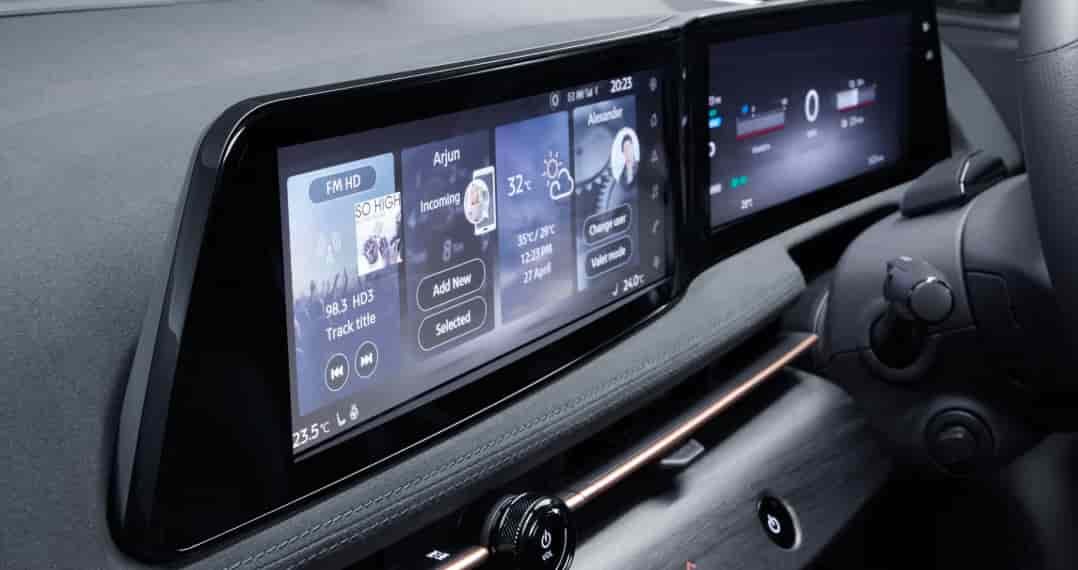
If your Nissan Ariya shows speed and distance in kilometers instead of miles, the driving experience can quickly feel uncomfortable. Many owners notice this right after purchasing the vehicle, especially when the car comes from another market. Constantly converting kilometers to miles takes attention away from the road and makes it harder to follow local speed limits with confidence.
You can solve this issue directly through the vehicle settings. The Nissan Ariya allows you to change display units without visiting a dealer or using special equipment. The process only takes a few minutes and works through the main infotainment screen. Once you update the setting, the speedometer, driving range, and navigation distances all switch to miles instantly.
This guide explains how to change Nissan Ariya from km to miles in a clear and practical way. It focuses on simple steps that any owner can follow, even without technical experience. The instructions apply to both locally purchased and imported vehicles, as long as the display settings are accessible.
After completing this guide, your Nissan Ariya will match your local driving standards. You can focus on traffic conditions and speed limits instead of mental conversions. This small adjustment improves safety, comfort, and overall driving confidence.
How To Change Nissan Ariya From Km To Miles
Follow the steps below directly on your vehicle screen. You do not need any tools or dealer assistance. Make sure the car is parked before you begin.
First, turn on the vehicle and wait for the main infotainment screen to load fully. Look at the center display and tap the main menu icon. This menu gives you access to all system settings.
Next, select Vehicle Settings from the menu. This section controls how the car displays driving information and system preferences. Scroll until you find the option related to display or units.
Now, open the Units or Measurement settings. Inside this menu, you will see distance and speed options. The system usually shows kilometers by default on vehicles configured for non US markets.
Tap the distance unit option and choose Miles instead of Kilometers. Confirm your selection when the system asks for approval. The screen will update immediately after confirmation.
Exit the settings menu and return to the main display. Check the speedometer and driving range. You should now see miles instead of kilometers across the dashboard and navigation system.
If the display does not update right away, restart the infotainment screen or turn the vehicle off and on once. In most cases, the change applies instantly without any delay.
Where the Km to Miles Change Applies on Nissan Ariya
After you change the distance unit from kilometers to miles, the update applies across multiple systems in your Nissan Ariya. The vehicle uses one central unit setting, so you do not need to adjust each display separately.
The most noticeable change appears on the speedometer. Vehicle speed switches from kilometers per hour to miles per hour immediately. This update helps you follow local speed limits accurately without mental conversion while driving.
The driving range display also updates automatically. Estimated remaining range shows miles instead of kilometers. This change makes it easier to plan daily trips and charging stops, especially if you live in a region that uses miles as the standard unit.
Navigation distances follow the same setting. Turn by turn directions, remaining distance to destination, and route summaries all appear in miles. You do not need to reopen the navigation system or restart route guidance.
Energy related information remains accurate and unaffected. The vehicle only changes how distance appears on the screen. Battery performance, efficiency calculations, and driving behavior stay the same.
Because the Nissan Ariya uses a unified display system, this single adjustment creates a consistent experience across the dashboard. Once you switch to miles, every relevant driving screen reflects the new unit without extra steps.
What If You Can’t Change Km to Miles on Nissan Ariya?
In most cases, the unit setting appears without any issues. If you cannot find the option to change kilometers to miles, the problem usually relates to software configuration rather than a system fault.
One common reason involves regional software settings. Some imported vehicles arrive with region specific configurations. These versions may limit certain display options based on the original market. Even in this case, the vehicle still functions normally and does not suffer from performance issues.
Another possible cause comes from a temporary system glitch. Infotainment systems rely on software that may not load settings correctly every time. Restarting the system often resolves this issue. Turn the vehicle off completely, wait a short moment, then power it back on and check the settings again.
In rare situations, the units menu may hide under a different label. Look for sections related to display, system preferences, or driver assistance settings. Manufacturers sometimes adjust menu names between software versions.
If none of these steps work, a dealer can confirm whether your vehicle software supports unit changes. This step should remain a last option. Most owners never need dealer assistance for this adjustment.
Even when the setting is unavailable, the issue does not affect vehicle safety or accuracy. The system still calculates speed and distance correctly. Only the visual unit format remains different.
Does Changing Km to Miles Affect Accuracy or Vehicle Performance?
Changing the display units on your Nissan Ariya does not affect how the vehicle drives or performs. The system only updates how information appears on the screen. All calculations continue to use the same internal data.
The speed sensor measures vehicle movement the same way regardless of the selected unit. When you switch from kilometers to miles, the system converts the values automatically. This conversion remains precise and consistent at all speeds.
Driving range calculations also stay accurate. The vehicle still analyzes battery level, energy consumption, and driving conditions in real time. The display simply presents the final result in miles instead of kilometers.
Navigation accuracy does not change either. Route distances, arrival times, and turn by turn guidance rely on GPS data. The system only changes the unit label shown to the driver.
Because the unit setting only affects visual output, there is no impact on safety systems. Driver assistance features continue to operate normally. This includes speed warnings, adaptive cruise control, and navigation alerts.
You can change the unit back to kilometers at any time. The process works both ways and does not create errors or system conflicts. This flexibility allows drivers to adjust the display based on personal preference or regional standards.
Frequently Asked Questions About Changing Km to Miles on Nissan Ariya
Can I switch from miles back to kilometers later?
Yes, you can change the unit setting at any time. The Nissan Ariya allows you to switch between kilometers and miles whenever you want. The process uses the same menu and only takes a few seconds.
Do I need dealer assistance to change km to miles?
No, dealer assistance is not required. You can complete the change directly through the vehicle settings. Most owners never need outside help for this adjustment.
Will changing units affect the resale value of my Nissan Ariya?
No, the unit setting does not affect resale value. Buyers can easily change the display back to their preferred unit. The setting does not modify vehicle data or driving history.
Does this change apply to navigation and range displays?
Yes, the change applies across the system. Speed, driving range, and navigation distances all switch to miles. You do not need to adjust each screen separately.
Why does my Nissan Ariya show kilometers by default?
Some vehicles come configured for non US markets. Imported models often display kilometers as the default unit. This behavior is normal and not a system error.
Conclusion
Changing the display units on your Nissan Ariya is a simple adjustment that improves everyday driving comfort. When the vehicle shows speed and distance in miles instead of kilometers, it becomes easier to follow local traffic rules and stay focused on the road.
This guide explained how to change Nissan Ariya from km to miles using the built in settings menu. The process does not require special tools, technical skills, or dealer assistance. Once you update the unit setting, the change applies across the speedometer, navigation system, and driving range display.
Understanding where this setting appears and how it works helps prevent confusion, especially for owners of imported vehicles. The unit change only affects how information appears on the screen. It does not impact accuracy, performance, or safety systems.
If your display does not update right away, a quick system restart often solves the issue. In rare cases, regional software settings may limit options, but most drivers never encounter this situation.
Now that you know how to change Nissan Ariya from km to miles, you can adjust the display to match your local standards in just a few minutes. This small change creates a more natural driving experience and allows you to focus fully on driving with confidence.