
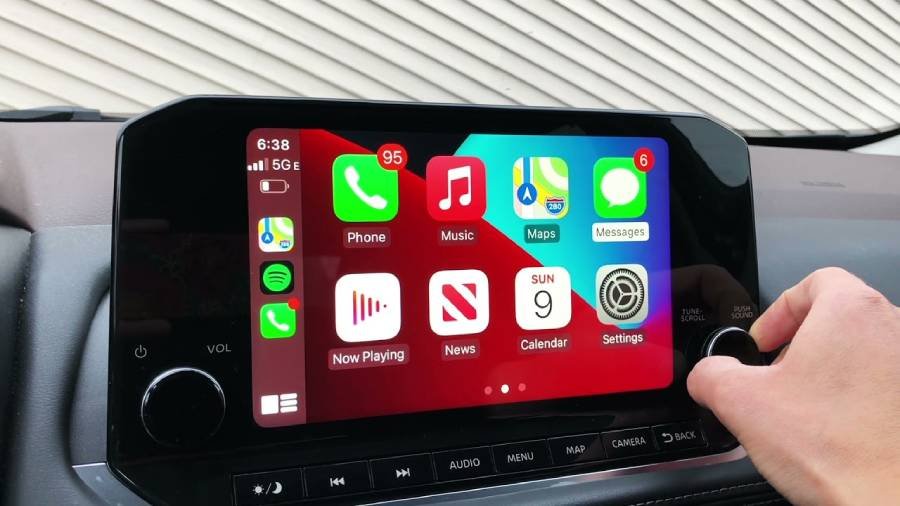
Yes, the Nissan Rogue offers wireless Apple CarPlay, but availability depends on the model year, trim level, and infotainment system. Wireless Apple CarPlay allows a compatible iPhone to connect to the Rogue’s infotainment display without plugging the phone into a USB port. However, a Nissan Rogue that supports Apple CarPlay does not automatically support a wireless connection because earlier systems rely on wired CarPlay.
Wireless Apple CarPlay is especially useful for everyday driving because the iPhone can reconnect to a compatible infotainment system after the initial pairing process. The connection uses wireless technologies rather than a USB cable, while Apple CarPlay provides access to supported functions such as navigation, calls, messages, music, and Siri through the vehicle’s display and controls.
For Nissan Rogue owners, the key factor is identifying the exact model year and infotainment configuration before attempting wireless setup. This guide explains which Nissan Rogue models support wireless Apple CarPlay, how to connect an iPhone, the differences between wired and wireless CarPlay, common connection problems, and the options available for older Rogue models.
Does the Nissan Rogue Have Wireless Apple CarPlay?
Yes, the Nissan Rogue has wireless Apple CarPlay on compatible model years and infotainment configurations. The feature allows an iPhone to communicate with the vehicle’s infotainment system without requiring a USB cable for the CarPlay connection. Once paired, the iPhone can use Apple CarPlay functions such as Apple Maps, phone calls, messages, music, podcasts, and Siri through the Rogue’s touchscreen and supported vehicle controls.
Wireless Apple CarPlay and standard Apple CarPlay are not the same capability. A Nissan Rogue can support Apple CarPlay while still requiring a physical USB connection. This distinction matters most when comparing older Rogue models with newer infotainment systems. Wired CarPlay transfers the connection through a compatible USB port and cable, while wireless CarPlay establishes the connection without keeping the iPhone physically connected to the vehicle.
The exact availability of wireless Apple CarPlay therefore depends on the Rogue’s model year and equipment rather than the Nissan Rogue nameplate alone. Two Rogue vehicles from different years can provide different CarPlay connection methods, and equipment can also vary between configurations within a model year. Owners should verify the specifications for their individual vehicle before assuming that an Apple CarPlay-equipped Rogue supports wireless operation.
Which Nissan Rogue Years Have Wireless Apple CarPlay?
Wireless Apple CarPlay became available on the redesigned 2021 Nissan Rogue, while earlier Rogue models with factory Apple CarPlay generally use a wired connection. The 2021 model introduced a substantially revised infotainment environment alongside the Rogue’s third generation, making model year an important starting point when determining wireless compatibility.
Compatibility should not be determined from model year alone. Nissan can offer different infotainment displays and equipment packages within the same model year, meaning a feature available for one configuration is not necessarily installed in every Rogue produced that year. The practical question is therefore not simply whether a particular Rogue year offered Apple CarPlay, but whether the vehicle’s specific infotainment configuration supports wireless Apple CarPlay.
| Nissan Rogue model year | Apple CarPlay | Wireless Apple CarPlay | Connection notes |
|---|---|---|---|
| 2017 and earlier | Varies by year/system | No factory wireless support | Check the installed infotainment system |
| 2018–2020 | Available factory CarPlay | Generally wired | USB connection is used for CarPlay |
| 2021 | Yes | Available on compatible configurations | Wireless capability depends on equipment |
| 2022 and newer | Yes | Available on compatible configurations | Verify the specific trim and infotainment system |
For a used Nissan Rogue, checking the actual vehicle is more reliable than assuming compatibility from a sales listing. A listing that states “Apple CarPlay” confirms neither wireless functionality nor the exact connection method. Owners and buyers should check the vehicle specifications, infotainment interface, owner’s manual, or the equipment associated with the specific vehicle.
This distinction also prevents confusion when comparing a newer Rogue with an older model. An older Rogue equipped with wired Apple CarPlay can still provide the primary CarPlay interface and supported iPhone apps, but the phone must remain connected through the appropriate USB connection. Native wireless Apple CarPlay eliminates that connection requirement on compatible systems.
Which Nissan Rogue Trims Have Wireless Apple CarPlay?
Wireless Apple CarPlay availability on the Nissan Rogue can depend on the trim and infotainment equipment installed for a specific model year. Nissan Rogue trims commonly include S, SV, SL, and Platinum, but feature availability can change between model years. A trim name by itself should therefore not be used as a universal indicator of wireless CarPlay support.
The infotainment configuration is the more important technical factor. Higher equipment levels can receive different touchscreen sizes, navigation functions, connectivity features, or technology packages from the base configuration. If wireless Apple CarPlay is tied to one of these systems for a particular model year, two Rogue trims from that year can have different connection capabilities even though both advertise smartphone integration.
For example, a buyer comparing two used Rogue vehicles should verify “wireless Apple CarPlay” rather than simply looking for “Apple CarPlay” in the equipment list. If the system requires an iPhone to remain plugged into the vehicle’s USB port for CarPlay to operate, it is wired CarPlay. If the compatible iPhone can establish and maintain CarPlay without the USB data connection, the vehicle has wireless CarPlay capability.
The safest approach is to check the specifications for the exact model year, trim, and infotainment system. This is particularly important for used vehicles because optional equipment and technology packages can make two Nissan Rogues with the same model year different in terms of connectivity features.
How Do You Connect Wireless Apple CarPlay in a Nissan Rogue?
To connect wireless Apple CarPlay in a compatible Nissan Rogue, enable Bluetooth, Wi-Fi, and Siri on the iPhone, pair the phone with the vehicle’s infotainment system, and approve the Apple CarPlay connection when prompted. The initial pairing establishes the relationship between the iPhone and the Rogue so that subsequent CarPlay sessions can connect without plugging the phone into a USB port.
Before pairing, confirm that the Nissan Rogue actually supports wireless Apple CarPlay and that CarPlay is enabled on the iPhone. Bluetooth and Wi-Fi should remain active because wireless CarPlay relies on wireless communication between the phone and infotainment system. Siri should also be enabled because voice control is integrated into the CarPlay interface.
The connection process can be completed in 6 basic steps:
- Start the Nissan Rogue and leave the vehicle in Park while completing the initial setup.
- Enable Bluetooth, Wi-Fi, and Siri on the iPhone.
- Open the Rogue’s phone or connection settings and select the option to add or connect a device.
- Select the Nissan system from the available devices on the iPhone and confirm the pairing request.
- Accept the Apple CarPlay request on both the iPhone and the vehicle display when prompted.
- Allow wireless CarPlay to operate so the infotainment system can launch the CarPlay interface.
After the initial setup, the Rogue can recognize the saved iPhone during later drives. The driver generally does not need to repeat the full pairing procedure each time unless the device has been removed, connection settings have changed, or the infotainment system no longer recognizes the phone. The exact menu labels can differ by Nissan Rogue model year and infotainment configuration, so the vehicle-specific owner’s manual should take priority when its instructions differ.
Wireless pairing also means the iPhone does not need to be removed from a pocket or bag simply to start CarPlay. Once connected, supported apps and functions appear through the vehicle interface, while Siri provides voice access to functions such as calls, messages, navigation, and compatible audio apps.
Does Nissan Rogue Apple CarPlay Work Without a USB Cable?
Nissan Rogue Apple CarPlay works without a USB cable when the vehicle has native wireless Apple CarPlay; Rogue models with wired-only CarPlay require a compatible USB connection. The requirement is determined by the installed infotainment system rather than Apple CarPlay alone.
On a wireless-compatible Rogue, the USB cable is not required to maintain the CarPlay data connection. After the initial pairing, the iPhone communicates wirelessly with the infotainment system. This allows the driver to leave the phone disconnected while continuing to use supported CarPlay functions on the vehicle display.
A wired-only Nissan Rogue operates differently. The iPhone must connect to a CarPlay-compatible USB port for the vehicle to launch and maintain Apple CarPlay. Simply enabling Bluetooth on these systems does not convert wired CarPlay into wireless CarPlay because Bluetooth phone pairing and Apple CarPlay connectivity are separate functions.
A USB connection can still be useful in a Rogue equipped with wireless CarPlay. For example, the driver may connect the iPhone to a power source when its battery needs charging. The important distinction is that a wireless-compatible system does not require the USB cable for the CarPlay connection itself.
What Is the Difference Between Wired and Wireless Apple CarPlay in a Nissan Rogue?
The main difference between wired and wireless Apple CarPlay in a Nissan Rogue is how the iPhone connects to the infotainment system. Wired CarPlay requires a physical USB data connection, while wireless CarPlay allows a compatible iPhone to connect without remaining attached to a USB cable.
| Feature | Wired Apple CarPlay | Wireless Apple CarPlay |
|---|---|---|
| CarPlay connection | USB cable | Wireless connection |
| USB cable required for CarPlay | Yes | No |
| Initial setup | Connect compatible USB cable and approve CarPlay | Pair iPhone and approve wireless CarPlay |
| Daily connection | Plug the phone into the vehicle | Compatible saved phone can reconnect wirelessly |
| Charging while connected | Yes, through the USB connection | Not inherent to the wireless connection |
| Phone placement | Limited by cable when connected | Phone can remain stored away |
| Best practical advantage | Connection and charging through one cable | Greater convenience for short and frequent trips |
Wireless CarPlay primarily improves convenience. A driver making several short trips does not need to repeatedly plug and unplug the iPhone simply to access CarPlay. This is useful for functions such as navigation, music, calls, and Siri that the driver may want available shortly after entering the vehicle.
Wired CarPlay retains a practical advantage because the physical connection can charge the iPhone while CarPlay is running. Wireless CarPlay does not itself provide power to the phone, so battery charging requires a separate USB connection or a compatible wireless charging system if the vehicle is equipped with one.
The choice between the two systems therefore affects connection behavior more than the basic purpose of Apple CarPlay. Both provide access to the CarPlay interface on compatible Nissan Rogue systems, while wireless support removes the requirement to keep the iPhone connected by USB.
Why Is Wireless Apple CarPlay Not Working in a Nissan Rogue?
Wireless Apple CarPlay may stop working in a Nissan Rogue when the iPhone is not paired correctly, Bluetooth or Wi-Fi is disabled, CarPlay permissions are restricted, the saved connection is corrupted, or the infotainment system fails to reconnect to the phone. Troubleshooting should start with connection settings before moving to resetting or re-pairing the device.
First, confirm that the Rogue supports wireless Apple CarPlay rather than wired-only CarPlay. This distinction eliminates a common compatibility problem: an iPhone may work correctly through USB but fail to establish CarPlay wirelessly because the installed infotainment system does not support that connection method. In this situation, changing Bluetooth or Wi-Fi settings will not add native wireless functionality.
Next, check the iPhone. Bluetooth and Wi-Fi should be enabled, Siri should be available, and CarPlay should not be restricted in the phone’s settings. The Rogue should also appear as an approved vehicle under the iPhone’s CarPlay settings after successful pairing. If another previously connected phone is active in the vehicle, selecting the intended device from the infotainment system can also be necessary.
The vehicle and phone should then be restarted if their settings appear correct but CarPlay still does not launch. Restarting clears a temporary connection failure without deleting the existing pairing. Re-pairing should come later because it requires removing the saved relationship between the two devices and creating it again.
Why Is My iPhone Not Connecting to Nissan Rogue Apple CarPlay?
An iPhone may fail to connect to Nissan Rogue Apple CarPlay because the vehicle and phone have not completed the required CarPlay pairing or because one of the necessary connection settings is disabled. The first diagnostic step is to determine whether the problem affects wireless CarPlay only or both wired and wireless connections.
Test the appropriate connection method for the vehicle. If the Rogue supports wired CarPlay, connecting the iPhone through the correct USB port can help isolate the problem. CarPlay working through USB but not wirelessly points toward wireless pairing, Wi-Fi, Bluetooth, or wireless compatibility rather than a complete loss of CarPlay functionality.
Check the iPhone’s Bluetooth, Wi-Fi, Siri, and CarPlay settings next. The Nissan Rogue should appear among recognized or permitted vehicles after it has been paired successfully. Removing an obsolete vehicle connection and creating a new pairing can resolve situations where the phone retains connection information that no longer matches the infotainment system.
The problem should also be tested with the vehicle stationary and the iPhone unlocked during setup. Respond to pairing and CarPlay permission prompts on both devices. Ignoring or rejecting one of these prompts can allow ordinary Bluetooth functions to work while preventing the full CarPlay interface from launching.
Why Does Nissan Rogue Wireless Apple CarPlay Keep Disconnecting?
Repeated wireless Apple CarPlay disconnections indicate a different problem from an iPhone that never connects to the Nissan Rogue. In this case, the initial pairing succeeds, but the wireless communication between the saved phone and infotainment system does not remain active.
Start by restarting both the iPhone and the infotainment system and then testing the connection again. Temporary software or connection-state problems can disappear after both systems initialize from a fresh state. The iPhone should also be running a compatible, current version of iOS, while applicable infotainment software updates should be checked according to the instructions for the specific Rogue.
The number of saved or active phones can also complicate diagnosis. If multiple devices have previously been paired with the Rogue, temporarily disconnecting other phones helps establish whether the infotainment system is attempting to prioritize another device. Test one iPhone at a time before changing additional settings.
Persistent disconnections should be separated from app-specific problems. If the entire CarPlay interface disappears, investigate the phone-to-vehicle connection. If CarPlay remains connected but one navigation or audio application stops responding, the issue may instead involve that application or its phone permissions.
How Do You Reset Apple CarPlay in a Nissan Rogue?
To reset Apple CarPlay in a Nissan Rogue, remove the existing vehicle-phone connection and pair the iPhone with the infotainment system again. Re-pairing is appropriate after basic checks and restarts fail because it creates a new connection profile between the two devices.
Start by removing or forgetting the Nissan Rogue from the iPhone’s Bluetooth and CarPlay settings. Remove the iPhone from the Rogue’s saved-device list as well. Restart the iPhone and vehicle infotainment system, then enable the required Bluetooth, Wi-Fi, Siri, and CarPlay settings before beginning a new pairing.
Pair the iPhone as if it were connecting to the vehicle for the first time. Confirm the matching pairing requests and approve Apple CarPlay when the phone and infotainment display request permission. After CarPlay launches, turn the vehicle off and start it again later to verify that automatic wireless reconnection works rather than testing only the initial pairing.
A complete factory reset of the infotainment system should not be the first troubleshooting step because it can remove other stored preferences and connections. Use the least disruptive sequence first: check compatibility → check connection settings → restart the devices → remove and re-pair the iPhone → investigate software or vehicle-specific issues if the problem continues.
Can You Add Wireless Apple CarPlay to an Older Nissan Rogue?
Yes, wireless Apple CarPlay can be added to some older Nissan Rogue models through a wireless CarPlay adapter or an aftermarket head unit, but the correct method depends on the factory infotainment system. A Rogue that already has factory wired Apple CarPlay is different from an older model that has no native CarPlay support at all.
For a Nissan Rogue with factory wired Apple CarPlay, a compatible wireless CarPlay adapter is the simpler upgrade path. The adapter connects to the vehicle’s CarPlay-enabled USB port and acts as an intermediary between the wired infotainment system and the iPhone. After the initial setup, the iPhone connects wirelessly to the adapter while the adapter communicates with the vehicle through its existing wired CarPlay interface. This solution does not convert the factory infotainment hardware into native wireless CarPlay; it adds wireless functionality through an external device.
A Rogue without factory Apple CarPlay generally requires a more substantial upgrade. Replacing the original head unit with an aftermarket receiver that supports wireless Apple CarPlay can provide CarPlay functionality, but compatibility extends beyond the physical dimensions of the display. The installation may need to account for steering-wheel controls, factory cameras, microphones, USB ports, vehicle settings, and other functions integrated with the original infotainment system.
The distinction between native wireless CarPlay, an adapter-based wireless connection, and an aftermarket head unit is important when evaluating an older Rogue. Native wireless CarPlay is built into a compatible Nissan infotainment configuration. An adapter relies on an existing wired CarPlay system, while an aftermarket receiver replaces or modifies part of the original infotainment setup. Owners should verify vehicle and device compatibility before purchasing an upgrade rather than assuming every Nissan Rogue can use the same solution.
Read more: Nissan Rogue Radio wont turn off: A Simple Guide to Overcome the Issue
How Can You Check Whether Your Nissan Rogue Supports Wireless Apple CarPlay?
You can check whether your Nissan Rogue supports wireless Apple CarPlay by identifying its model year and infotainment configuration, reviewing the vehicle-specific documentation, and checking the available smartphone connection options in the infotainment system. This is more reliable than determining compatibility from the presence of an Apple CarPlay icon alone.
Start with the model year because it narrows the possible infotainment systems installed in the vehicle. Next, identify the trim and relevant technology or infotainment equipment. The combination matters because features can vary between configurations within the same Nissan Rogue model year. For a used vehicle, the actual installed equipment should take priority over assumptions based only on the trim badge.
Check the owner’s manual and vehicle specifications for references to Apple CarPlay and wireless connectivity. Pay particular attention to whether the documentation explicitly describes a wireless CarPlay connection. The phrase Apple CarPlay by itself is insufficient because it may refer to a system that requires USB.
The infotainment interface provides another practical check. Open the phone, connection, or smartphone integration settings while the Rogue is parked and look at the available device-pairing options. A system designed for wireless CarPlay should provide the appropriate process for pairing a compatible iPhone rather than requiring the phone to remain connected to a CarPlay-enabled USB port.
You can also perform a simple connection test. Enable Bluetooth, Wi-Fi, Siri, and CarPlay on a compatible iPhone and follow the Rogue’s device-pairing procedure. If CarPlay can launch and continue operating without a USB data connection, the system supports wireless operation. If CarPlay launches only after the iPhone is connected to the appropriate USB port, the installed system is operating as wired CarPlay.
For an uncertain vehicle, especially a used Rogue with optional equipment, verify the exact configuration through vehicle-specific documentation or Nissan support before purchasing an adapter or replacing infotainment hardware. This prevents three different systems—factory wired CarPlay, factory wireless CarPlay, and aftermarket wireless CarPlay—from being treated as the same feature.
This completes the body sections in the approved outline. A separate generic conclusion is not necessary because the final compatibility section already provides the actionable endpoint and adding a summary would largely repeat information covered in the core sections.