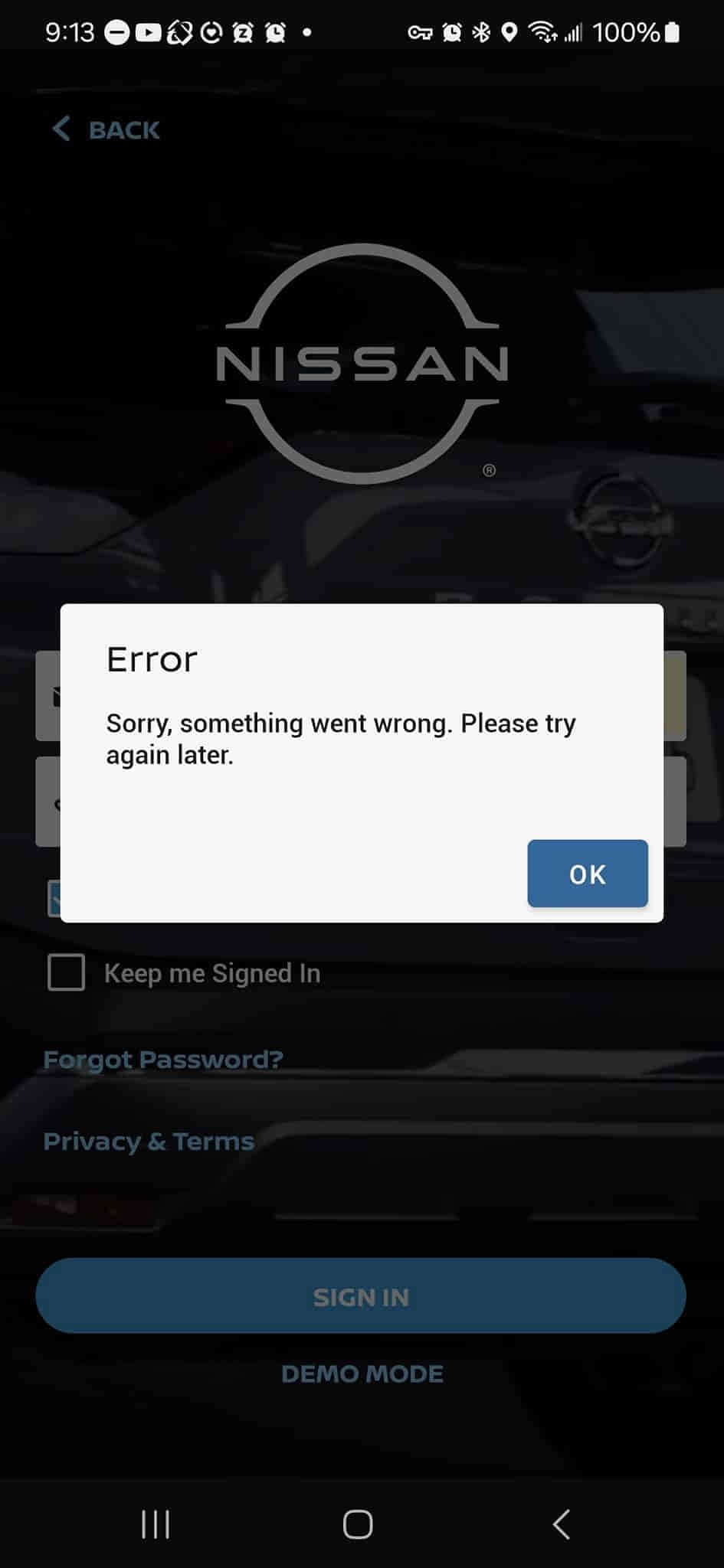
A Nissan app that stops working usually results from connection issues, account authentication problems, outdated software, or temporary Nissan server interruptions. When the app cannot communicate with your vehicle or Nissan’s cloud services, features such as Remote Start, Remote Lock/Unlock, Vehicle Health Reports, and vehicle status updates may become unavailable. Identifying the source of the problem is the first step toward restoring full functionality.
Most Nissan app issues can be resolved without visiting a dealership. A weak internet connection, an expired NissanConnect subscription, an outdated mobile app, incorrect login credentials, or software conflicts on your smartphone are among the most common causes. In some cases, the problem originates from the vehicle itself, such as a telematics communication error or a low 12-volt battery that prevents connected services from operating correctly. Temporary maintenance or outages on Nissan’s servers can also interrupt app functionality even when both your phone and vehicle are working normally.
This guide explains 12 of the most common Nissan app problems and provides step-by-step solutions for each one. You’ll learn how to determine whether the issue is caused by your smartphone, your Nissan account, your vehicle, or Nissan’s online services. The guide also covers troubleshooting for login failures, connection errors, remote start problems, app crashes, vehicle synchronization delays, and subscription issues. By the end, you’ll know which fixes you can perform yourself and when it’s time to contact Nissan Customer Support for further assistance.
Why Is the Nissan App Not Working?
The Nissan app stops working when communication between your smartphone, Nissan’s cloud servers, and your vehicle is interrupted. Every connected feature, including Remote Start, Remote Lock and Unlock, vehicle location, maintenance alerts, and vehicle health reports, depends on these three components exchanging data successfully. If one component fails to respond, the app may stop loading, fail to update vehicle information, reject remote commands, or display unexpected error messages.
In most cases, the problem originates from either the mobile device or Nissan’s connected services rather than the vehicle itself. An unstable internet connection, outdated application version, corrupted app data, or an expired login session can prevent the app from authenticating your account. Likewise, scheduled server maintenance or an unexpected outage on Nissan’s cloud platform can temporarily disable connected services for every user, even when the smartphone and vehicle are functioning normally.
Vehicle-related issues can also interrupt communication. NissanConnect Services rely on the vehicle’s telematics control unit (TCU) and cellular network to exchange information with Nissan’s servers. If the vehicle has poor cellular reception, a weak 12-volt battery, an inactive NissanConnect subscription, or a telematics malfunction, the app may remain connected to your account while failing to retrieve the latest vehicle status or execute remote commands.
Because multiple systems work together, the symptoms often indicate where the problem originates. For example, an app that crashes immediately after opening usually points to a software issue on the smartphone, whereas an app that opens normally but cannot update vehicle information is more likely experiencing a connectivity or server-related problem. Identifying the point where communication breaks down allows you to apply the correct solution instead of trying multiple troubleshooting steps unnecessarily.
How Do You Know What Is Causing the Nissan App Problem?
The fastest way to identify the cause of a Nissan app problem is to determine whether the issue originates from your smartphone, your Nissan account, Nissan’s servers, or your vehicle. Since the application depends on all four components working together, checking each one individually makes troubleshooting more accurate and prevents unnecessary repairs.
Is the Problem Caused by Your Internet Connection?
An unstable internet connection is one of the most common reasons the Nissan app cannot communicate with Nissan’s cloud services. Every time you sign in, refresh your vehicle’s status, or send a remote command, the app must transmit data through either Wi-Fi or a mobile network. If the connection is interrupted or blocked, the request may fail before it ever reaches Nissan’s servers.
Network-related issues are usually easy to recognize because other online services may also respond slowly or fail to load. Switching from Wi-Fi to mobile data, disabling a VPN, or reconnecting to a different network often restores communication immediately. If the app starts working after changing networks, the internet connection—not the vehicle or the application—was the source of the problem.
Is the Nissan Server Temporarily Unavailable?
Nissan’s connected services rely on cloud infrastructure that occasionally undergoes maintenance or experiences temporary outages. During these periods, the app may remain installed and fully functional on your phone while remote services stop responding because the servers processing those requests are unavailable.
A server-side issue typically affects multiple users at the same time. Symptoms include remote commands remaining in a pending state, vehicle information failing to refresh, repeated login errors despite correct credentials, or unusually long loading times throughout the application. When these symptoms appear simultaneously across different devices or users, waiting for Nissan to restore service is usually the only effective solution.
Is Your Nissan Account Experiencing Authentication Issues?
Authentication problems prevent the Nissan app from confirming that your account is authorized to access connected services. This can happen after changing your password, enabling additional security verification, signing in from a new device, or allowing your login session to expire.
When authentication fails, the app may repeatedly ask you to sign in, reject valid credentials, or display your account without loading any vehicle information. Signing out completely, resetting your password if necessary, and establishing a new login session often resolves these issues because it generates a fresh authentication token between your account and Nissan’s servers.
Has Your Phone or App Recently Been Updated?
Major software updates sometimes introduce temporary compatibility issues between the Nissan app and your smartphone’s operating system. Cached files created by an older version of the application may no longer match the updated software, causing the app to freeze, crash, or behave unpredictably.
These issues frequently appear immediately after installing a new version of iOS, Android, or the Nissan app itself. Restarting the device, clearing cached data, or reinstalling the application replaces outdated files and forces the app to synchronize with the latest software environment, resolving many update-related problems.
Is Your NissanConnect Subscription Still Active?
Many connected features are only available while your NissanConnect Services subscription remains active. Although the application may still open and allow you to access your account, premium services such as Remote Start, Remote Lock and Unlock, vehicle location, and vehicle health reports may stop working once the subscription expires.
Because subscription-related failures often resemble technical faults, they are frequently overlooked during troubleshooting. Verifying the subscription status before performing advanced repairs can save significant time, especially when the app functions normally but only specific connected features are unavailable.
How Do You Fix a Nissan App That Is Not Working?
Most Nissan app problems can be resolved by restoring communication between your smartphone, Nissan’s cloud services, and your vehicle. Because the application depends on several connected systems, troubleshooting should begin with the simplest software-related fixes before moving to vehicle-specific diagnostics. This approach eliminates the most common causes first and reduces the likelihood of unnecessary repairs.
The first step is to completely close the Nissan app and reopen it. Mobile applications occasionally become unresponsive after running continuously in the background or after losing network connectivity while syncing with cloud services. Closing the app from the recent applications menu forces it to establish a new connection with Nissan’s servers instead of relying on an outdated session. If the problem was caused by a temporary communication failure, reopening the app is often enough to restore normal operation.
If restarting the app does not resolve the issue, verify that your internet connection is stable. Every remote command—including locking the doors, starting the engine remotely, locating the vehicle, or refreshing vehicle status—must pass through Nissan’s cloud platform before reaching the vehicle. A slow Wi-Fi connection, poor cellular coverage, or a VPN that interferes with network traffic can interrupt this process. Testing the app on another network, such as switching from Wi-Fi to mobile data, helps determine whether the connection is preventing communication.
Outdated software is another frequent cause of Nissan app failures. Mobile operating systems receive regular security and compatibility updates, and application developers release new versions to support those changes. When the Nissan app has not been updated for an extended period, it may become incompatible with the latest version of iOS or Android. Installing the newest version of the application ensures that bug fixes, security improvements, and compatibility patches are applied before additional troubleshooting is attempted.
Restarting the smartphone is also an effective troubleshooting step because it refreshes background services that support internet connectivity, authentication, and application memory. A device that has been running for several days without restarting may experience temporary software conflicts that affect multiple applications, including NissanConnect. Rebooting the phone clears temporary memory and reloads essential system processes without affecting your account or vehicle settings.
On Android devices, corrupted cache files can prevent the Nissan app from loading correctly or synchronizing with connected services. Cached data is designed to improve performance by storing frequently used information locally, but damaged cache files may continue loading outdated information even after the application has been updated. Clearing the cache removes these temporary files while preserving your account information, allowing the application to rebuild fresh data during the next launch.
If the application continues malfunctioning after clearing cached data, reinstalling it provides a more comprehensive reset. Removing the app deletes locally stored configuration files that may have become corrupted over time. After reinstalling the latest version from the official app store and signing in again, the application downloads a fresh configuration directly from Nissan’s servers. This process resolves many persistent issues that cannot be fixed through cache clearing alone.
Account authentication should also be refreshed during troubleshooting. Signing out of the Nissan app and signing back in creates a new secure session between your smartphone and Nissan’s cloud services. If your authentication token has expired or become invalid, establishing a new login session often restores access to connected services without requiring additional changes. Users who recently changed their password or activated multi-factor authentication are particularly likely to benefit from this step.
If none of these software-based solutions restores functionality, the next step is to verify that the vehicle itself remains connected to NissanConnect Services. Even when the application is operating correctly, remote features cannot function if the vehicle’s telematics system is offline, the NissanConnect subscription has expired, or the vehicle is parked in an area without sufficient cellular coverage. Confirming vehicle connectivity helps determine whether the remaining issue lies with the car rather than the mobile application.
Why Is the Nissan App Not Connecting to Your Vehicle?
A Nissan app can successfully connect to your account while failing to communicate with your vehicle if the vehicle is unable to exchange data with Nissan’s cloud platform. Unlike Bluetooth-based applications, NissanConnect Services rely primarily on an embedded telematics control unit (TCU) and a built-in cellular connection inside the vehicle. If either component cannot transmit or receive data, remote services become unavailable even though the app appears to function normally.
One of the most common causes is poor cellular reception where the vehicle is parked. Underground parking garages, enclosed structures, rural areas, and locations with weak mobile coverage can prevent the telematics module from maintaining a reliable connection. In these situations, remote commands remain pending until the vehicle reconnects to the cellular network.
A weak or discharged 12-volt battery can also interrupt communication. Although the high-voltage battery powers electric driving in Nissan EVs, connected services depend on the vehicle’s 12-volt electrical system to operate the telematics hardware. If the battery voltage drops below the required level, the vehicle may temporarily disable certain communication functions to preserve power, causing the Nissan app to lose contact with the vehicle.
Vehicle registration problems represent another possible cause. Every NissanConnect account is linked to a specific Vehicle Identification Number (VIN), allowing Nissan’s servers to identify the correct vehicle whenever a remote command is sent. If the VIN has not been registered correctly, ownership has recently changed, or the vehicle has not completed the activation process, the application may display your account successfully while failing to locate or communicate with the vehicle.
Subscription status should also be verified before assuming a technical failure. Many connected features depend on an active NissanConnect Services subscription, and expired plans often disable remote commands without affecting basic account access. In this situation, the application continues opening normally, but requests such as Remote Start, Remote Lock, or vehicle location either fail immediately or never reach the vehicle.
Finally, failures within the telematics control unit itself can prevent communication altogether. Like any electronic component, the TCU may occasionally require a software reset, firmware update, or hardware replacement if it develops a fault. When every smartphone troubleshooting step has been completed, the subscription remains active, and network conditions are normal, a dealership inspection is usually required to diagnose the vehicle’s communication system.
Why Is Nissan Remote Start Not Working in the App?
The Nissan Remote Start feature stops working when the vehicle does not meet the operating conditions required for remote engine activation or when communication between the app and the vehicle is interrupted. Unlike a traditional remote key fob, every Remote Start request made through the Nissan app must first be authenticated by Nissan’s cloud servers before being transmitted to the vehicle. If any part of this process fails, the command is rejected to protect vehicle security and ensure safe operation.
One of the most common reasons Remote Start fails is that the vehicle does not satisfy its built-in safety requirements. Nissan’s remote starting system continuously checks multiple conditions before allowing the engine to start. If a door, the hood, or the trunk is not completely closed, the request is automatically denied because the system cannot verify that the vehicle is secure. Similarly, Remote Start may be disabled if the engine is already running, the ignition has been switched on manually, or the transmission is not in the required parking position. These restrictions are intentional and prevent accidental vehicle movement or unauthorized operation.
Vehicle communication problems can produce the same symptom even when every safety condition has been satisfied. The request generated by the Nissan app must travel from your smartphone to Nissan’s servers and then through the vehicle’s embedded cellular connection. If the vehicle is parked in an underground garage, inside a steel structure, or in an area with limited cellular coverage, the command may never reach the telematics control unit. In these situations, the app often displays the request as pending before eventually reporting that the operation could not be completed.
Subscription status also plays a significant role in Remote Start availability. On many Nissan models, this feature is included only with an active NissanConnect Services plan. Once the subscription expires, the application continues functioning as a mobile account portal, but premium connected services—including Remote Start—are disabled. Because the app still opens normally, many users mistakenly assume they are experiencing a technical malfunction when the actual cause is simply an inactive subscription.
Environmental conditions and vehicle health may also prevent Remote Start from operating correctly. A weak 12-volt battery, low fuel level, recent engine fault, or diagnostic warning can cause the vehicle to reject remote commands until the condition has been resolved. Modern vehicles continuously monitor their electrical and mechanical systems, and Remote Start is automatically disabled whenever the system detects a condition that could affect reliability or safety. Reviewing any warning messages displayed on the vehicle’s instrument cluster can often reveal why the request was declined.
If Remote Start continues failing after verifying the vehicle’s operating conditions, network connectivity, and subscription status, the issue may involve the vehicle’s telematics hardware or software configuration. In these situations, the Nissan app is simply reporting that the vehicle cannot complete the request rather than causing the failure itself. A diagnostic inspection at a Nissan dealership can confirm whether the telematics control unit requires a software update, reset, or replacement.
Why Does the Nissan App Keep Crashing?
A Nissan app that repeatedly crashes usually indicates a software compatibility problem, corrupted application data, or insufficient system resources on the mobile device. Unlike connection-related issues that affect only specific features, application crashes prevent the app from functioning altogether because the operating system forces it to close unexpectedly.
Corrupted application files are among the most common causes of repeated crashes. Every time the Nissan app is opened, it loads locally stored configuration files, user preferences, and cached information before communicating with Nissan’s cloud platform. If any of these files become damaged after an interrupted update, incomplete installation, or unexpected system shutdown, the application may fail during startup. Clearing the cache on Android devices or reinstalling the application on both Android and iPhone removes these corrupted files and allows the app to generate a clean configuration during the next launch.
Operating system compatibility is another major factor. Mobile applications are continuously updated to support new versions of iOS and Android, while older versions gradually lose compatibility. Running an outdated operating system may prevent the latest Nissan app from functioning correctly, whereas installing a newly released operating system can temporarily introduce compatibility issues until Nissan publishes an updated version of the application. Keeping both the operating system and the Nissan app updated minimizes the likelihood of software conflicts.
Limited device resources can also contribute to application instability. Smartphones with very little available storage or memory may terminate background processes to preserve performance, particularly when several resource-intensive applications are running simultaneously. When this occurs, the Nissan app may freeze during synchronization or close unexpectedly before completing its connection with Nissan’s servers. Restarting the device, freeing storage space, and closing unnecessary background applications often improves stability by making more system resources available.
Third-party software occasionally interferes with the Nissan app as well. VPN applications, aggressive battery optimization tools, security software, and network filtering utilities can restrict the application’s ability to communicate with cloud services. Although these utilities are designed to improve privacy or battery life, they sometimes interrupt background synchronization or block secure network requests that the Nissan app requires to authenticate users and exchange vehicle data. Temporarily disabling these features can help determine whether another application is responsible for the crashes.
If the Nissan app continues crashing after updating the software, clearing corrupted files, and restarting the device, the problem may be associated with a newly introduced software bug rather than the user’s device. Newly released application versions occasionally contain defects that affect specific smartphone models or operating system versions. When widespread crash reports appear shortly after an update, waiting for Nissan to release a maintenance update is often the most effective solution. In the meantime, monitoring official support announcements and installing new app updates as they become available helps restore normal functionality as quickly as possible.
Why Can’t You Log In to the Nissan App?
Login failures usually occur because the Nissan app cannot verify your account credentials or establish a secure authentication session with Nissan’s cloud services. Every sign-in attempt requires the application to validate your email address, password, account status, and security credentials before granting access to connected vehicle services. If any part of this authentication process fails, the app denies access even though the application itself is functioning correctly.
The most straightforward cause is entering incorrect account credentials. Passwords are case-sensitive, and it’s common for users to accidentally enter an outdated password after changing it on another device. AutoFill features and password managers can also submit saved credentials that no longer match the current account information. Before attempting more advanced troubleshooting, confirm that the email address associated with your NissanConnect account is correct and that the latest password is being used.
Authentication problems can also develop when an account session expires. For security reasons, Nissan periodically invalidates authentication tokens that allow users to remain signed in without entering their password every time the app opens. If the stored token expires or becomes corrupted, the app may repeatedly display the login screen, reject valid credentials, or continuously ask users to verify their identity. Signing out completely and establishing a new login session generates a fresh authentication token, which often restores access immediately.
Password resets and security updates may temporarily interrupt account access as well. After changing a password, enabling multi-factor authentication, or updating account security settings, older devices may continue attempting to authenticate with invalid credentials stored locally. Until these outdated credentials are replaced, the application may appear unable to log in despite the account remaining active. Removing the stored login information and signing in again forces the application to synchronize with the latest account settings.
In some situations, the problem originates on Nissan’s servers rather than the user’s device. Scheduled maintenance, authentication server outages, or temporary service interruptions can prevent account verification for large numbers of users simultaneously. During these events, valid login credentials may still produce authentication errors because the servers responsible for processing login requests are temporarily unavailable. If multiple Nissan connected services stop working at the same time, the issue is more likely server-related than account-specific.
If login failures continue after verifying your credentials, resetting your password, and confirming that Nissan’s services are operating normally, the account itself may require further investigation. Duplicate accounts, incomplete vehicle registration, ownership transfer issues, or account security restrictions can all prevent successful authentication. In these cases, contacting Nissan Customer Support is typically necessary to verify account ownership and restore access to connected services.
Why Is the Nissan App Not Updating Vehicle Status?
The Nissan app cannot update vehicle status when it is unable to receive current information from the vehicle through Nissan’s connected services network. Unlike information stored locally on your phone, vehicle data such as fuel level, battery charge, tire pressure, odometer readings, and vehicle location must be transmitted from the vehicle’s telematics system to Nissan’s cloud servers before appearing in the app. Any interruption along this communication path results in outdated or incomplete information.
One of the most common reasons for delayed updates is temporary synchronization latency. Vehicle data is not transmitted continuously in real time. Instead, the telematics system sends information at scheduled intervals or after specific events, such as turning the ignition off, completing a trip, or successfully connecting to the cellular network. As a result, the information displayed in the app may lag behind the vehicle’s actual condition for several minutes or longer, particularly if the vehicle has remained parked without recent activity.
Cellular coverage also plays a critical role in vehicle synchronization. Because NissanConnect Services rely on the vehicle’s built-in mobile connection rather than the driver’s smartphone, poor network reception where the vehicle is parked can delay or completely prevent status updates. Underground parking structures, remote rural areas, and heavily shielded buildings often reduce signal strength enough to interrupt communication with Nissan’s servers. Once the vehicle regains reliable cellular coverage, pending data is typically transmitted automatically.
Battery management systems may also affect synchronization. To reduce unnecessary power consumption, some Nissan models limit background communication when the 12-volt battery reaches a low state of charge or when extended battery-saving strategies are activated. Under these conditions, the telematics control unit may reduce the frequency of data transmissions until normal electrical conditions return. Although this behavior helps preserve battery life, it can make the app appear unresponsive because vehicle information is no longer being refreshed regularly.
Software synchronization problems occasionally develop after application updates, vehicle software updates, or account changes. Cached information stored within the application may no longer match the latest data available on Nissan’s servers, causing the app to continue displaying outdated vehicle information. Refreshing the application, signing out and back in, or reinstalling the app forces a new synchronization process that often resolves these inconsistencies without requiring vehicle repairs.
Persistent synchronization failures that continue across multiple days generally indicate a deeper communication problem. If the vehicle consistently fails to report updated information despite having adequate cellular coverage, an active NissanConnect subscription, and a functioning mobile application, the telematics control unit may require diagnostic testing. A dealership can verify whether the vehicle is successfully communicating with Nissan’s connected services platform and determine whether a software update or hardware repair is necessary.
Which Nissan App Problems Require Customer Support?
Most Nissan app issues can be resolved through basic troubleshooting, but some problems require assistance from Nissan Customer Support or an authorized dealership because they involve account verification, subscription management, or vehicle hardware. If the app continues malfunctioning after reinstalling it, updating your device, verifying your internet connection, and confirming that your NissanConnect subscription is active, the remaining issue is unlikely to be caused by your smartphone alone.
One situation that typically requires customer support is when the vehicle cannot be linked to your Nissan account. Every connected vehicle must be associated with the correct Vehicle Identification Number (VIN) before remote services can operate. If ownership has recently changed, the vehicle has been transferred between accounts, or the activation process was never completed successfully, the app may display your account correctly while failing to recognize the vehicle. Because VIN ownership and account authorization involve security verification, only Nissan can complete these changes.
Subscription-related problems may also require official assistance. While many users assume a failed Remote Start command indicates a technical fault, the actual cause may be an inactive NissanConnect Services subscription, an unsuccessful subscription renewal, or an account provisioning error. If your subscription appears active but premium features remain unavailable for an extended period, Nissan Support can verify whether the connected services have been correctly activated on the backend.
Hardware-related communication failures cannot be resolved through the mobile application. The telematics control unit (TCU), which enables the vehicle to communicate with Nissan’s cloud platform, may occasionally require a software update, reconfiguration, or replacement. Symptoms such as the vehicle never reporting its status, consistently failing to receive remote commands, or remaining permanently offline despite adequate cellular coverage often indicate a fault within the vehicle’s communication system. Diagnosing these components requires dealership diagnostic equipment that is not accessible through the Nissan app.
Persistent authentication issues may also justify contacting customer support. If password resets, new login sessions, and account verification fail to restore access, the account may be restricted because of duplicated registrations, incomplete identity verification, or security protections triggered by unusual login activity. Nissan Support can review account records, confirm ownership, and restore access without requiring unnecessary troubleshooting on the user’s device.
When contacting Nissan Customer Support, preparing relevant information in advance can significantly reduce the time needed to diagnose the problem. Providing the vehicle’s VIN, the Nissan account email address, the smartphone model, the operating system version, the Nissan app version, and a detailed description of the issue helps support representatives determine whether the problem is account-related, software-related, or vehicle-specific.
Read more: Nissan Frontier Years To Avoid
How Can You Prevent Nissan App Problems in the Future?
Preventing Nissan app problems is easier than troubleshooting them because most connectivity failures develop gradually through outdated software, expired subscriptions, or interrupted communication between the vehicle and Nissan’s cloud services. Keeping every part of the connected ecosystem up to date greatly reduces the likelihood of unexpected failures.
Regular software updates should be part of routine vehicle maintenance. Nissan periodically releases application updates to improve stability, enhance security, and maintain compatibility with the latest versions of iOS and Android. Likewise, smartphone operating system updates often resolve networking and security issues that affect cloud-connected applications. Installing both updates promptly minimizes compatibility problems before they begin affecting connected services.
Maintaining an active NissanConnect Services subscription is equally important. Many remote features rely entirely on subscription-based cloud services, and expiration often disables connected functions without affecting the application’s ability to open. Periodically reviewing your subscription status ensures that Remote Start, Remote Lock and Unlock, vehicle location, and other connected services remain available when needed.
Reliable connectivity also improves long-term performance. Vehicles that spend extended periods in areas with poor cellular reception may experience delayed synchronization or missed status updates because the telematics control unit cannot consistently communicate with Nissan’s servers. Parking in locations with stronger cellular coverage whenever possible allows pending data to synchronize more quickly and helps remote commands reach the vehicle without unnecessary delays.
Good smartphone maintenance contributes to application stability as well. Keeping sufficient storage space available, restarting the device periodically, avoiding aggressive battery optimization settings, and removing outdated cached data all help the Nissan app operate more reliably. These routine maintenance practices reduce the likelihood of application crashes, authentication failures, and synchronization problems caused by limited system resources.
Finally, monitoring Nissan service announcements can help distinguish between personal device issues and platform-wide outages. Temporary maintenance periods occasionally interrupt connected services for all users, making additional troubleshooting unnecessary. Confirming whether Nissan has announced scheduled maintenance before reinstalling the application or resetting account settings can save considerable time and prevent unnecessary configuration changes.
Frequently Asked Questions About Nissan App Not Working
Why is my Nissan app suddenly not working?
A Nissan app can suddenly stop working because of a temporary server outage, an unstable internet connection, expired authentication credentials, outdated software, or a communication problem between the vehicle and Nissan’s connected services platform. Identifying which system has stopped communicating is the fastest way to determine the correct solution.
Why won’t my Nissan app connect to my car?
The app usually cannot connect to the vehicle because the telematics control unit is offline, the vehicle has poor cellular reception, the NissanConnect subscription has expired, or the vehicle has not been properly registered to your account. Verifying vehicle connectivity and subscription status should be the first diagnostic steps.
Does deleting the Nissan app remove my vehicle?
No. Removing the application only deletes locally stored data from your smartphone. Your Nissan account, vehicle registration, and NissanConnect subscription remain associated with Nissan’s cloud platform. After reinstalling the app and signing in again, your registered vehicle should reappear automatically.
How long do Nissan server outages usually last?
Most temporary service interruptions are resolved within a few hours, although the duration depends on the underlying cause. Scheduled maintenance is generally completed more quickly than unexpected system failures, and connected services usually resume automatically once Nissan restores normal operations.
How do I reset the Nissan app?
The most effective way to reset the Nissan app is to sign out of your account, force-close the application, clear cached data if you are using Android, or reinstall the app if problems persist. These steps remove outdated local files and establish a new connection with Nissan’s cloud services.
Does NissanConnect require a subscription?
Yes, many connected features require an active NissanConnect Services subscription. Depending on the vehicle model and market, premium functions such as Remote Start, Remote Lock and Unlock, vehicle location, and connected notifications may become unavailable after the subscription expires, even though the application itself continues to open normally.