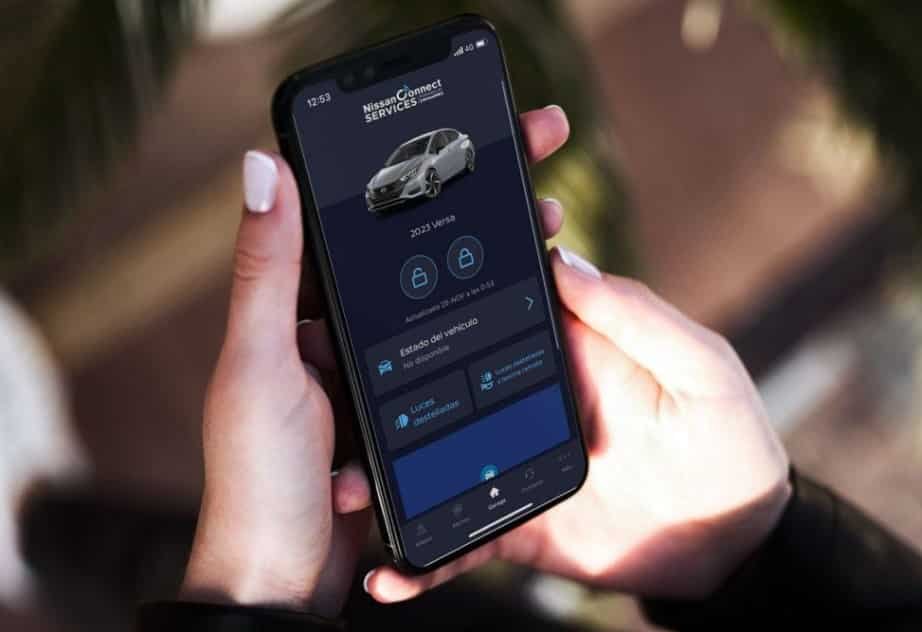
Canceling a NissanConnect subscription is the only way to stop recurring charges for connected services. Deleting the MyNISSAN App does not cancel your subscription. Removing your vehicle from the app does not end your service plan either. You must use an official Nissan cancellation method to terminate the subscription.
The exact process depends on your country, vehicle model, and NissanConnect package. Some owners can manage their subscription through the MyNISSAN App or Nissan Owner Portal. Others need to contact NissanConnect Customer Support. Before you start, prepare your Nissan ID, Vehicle Identification Number (VIN), registered email address, and recent billing details. This information helps Nissan verify your account faster.
This guide explains every step of the cancellation process. You will learn how to cancel your subscription, stop automatic renewal, and confirm that the service has ended. You will also discover what happens after cancellation, which features stop working, whether you can request a refund, and how to manage your account before selling your vehicle. By following these steps, you can cancel NissanConnect correctly and avoid unnecessary charges.
How Do You Cancel a NissanConnect Subscription?
You can cancel a NissanConnect subscription through your Nissan account or by contacting NissanConnect Customer Support. The available method depends on your region and subscription plan. Do not delete the app if your goal is to stop billing. That action only removes the application from your phone.
First, sign in with the Nissan ID connected to your vehicle. Next, select the correct vehicle if your account includes more than one Nissan. Then review your active NissanConnect plan and check its renewal status. If your account includes a cancellation option, submit your request and save the confirmation immediately.
If you cannot find a cancellation option, contact NissanConnect Customer Support. Ask the representative to cancel your active service plan and disable automatic renewal. Request the effective cancellation date before ending the conversation. Also ask whether another payment will be charged after the request.
Finally, request written confirmation by email. The confirmation should include your cancellation reference number, termination date, and billing status. Keep this document until at least one billing cycle has passed. It will help you resolve any future billing dispute quickly.
Can You Cancel NissanConnect Through the MyNISSAN App?
Yes, you may be able to cancel a NissanConnect subscription through the MyNISSAN App if your region and service plan support subscription management. However, not every NissanConnect package includes an in-app cancellation option. Some plans still require you to contact NissanConnect Customer Support before the cancellation becomes effective.
First, open the MyNISSAN App and sign in with the Nissan ID linked to your vehicle. Next, select the correct vehicle if your account manages more than one Nissan. Then, open the section that displays your connected services or subscription details. Review your active plan carefully before making any changes. If the app includes a cancellation or subscription management option, follow the on-screen instructions and complete the request. After that, save every confirmation message or email for your records.
Sometimes the app does not display a cancellation button. This situation does not mean your subscription has already ended. Instead, your plan may require manual verification through NissanConnect Customer Support. Regional policies, subscription types, and vehicle compatibility often determine which cancellation methods are available. Therefore, always follow the instructions shown for your specific account instead of relying on screenshots from another user.
Many owners believe that deleting the MyNISSAN App automatically ends their subscription. That assumption is incorrect. Removing the application only deletes the software from your mobile device. Your NissanConnect subscription, billing agreement, and automatic renewal can remain active. For that reason, always confirm the cancellation through your Nissan account or an official support representative. Before you consider the process complete, verify that automatic renewal has stopped and request written confirmation showing the effective cancellation date.
Can You Cancel NissanConnect Through the Nissan Owner Portal?
Yes, you can manage certain NissanConnect subscriptions through the Nissan Owner Portal if your account and service plan support online management. However, the available options vary by region, vehicle model, and subscription package. Some owners can submit a cancellation request online, while others must contact NissanConnect Customer Support to complete the process.
Start by signing in to the Nissan Owner Portal with the Nissan ID connected to your vehicle. After you access your account, confirm that you selected the correct vehicle, especially if your profile includes more than one Nissan. Next, open the NissanConnect Services section and review your active subscription. Check the renewal date, billing status, and service package before making any changes. If the portal displays a subscription management option, follow the instructions to cancel the plan and save the confirmation page for your records.
Sometimes the Owner Portal does not include a cancellation button. In most cases, this simply means your subscription requires another verification step. For example, Nissan may ask you to confirm your identity through Customer Support before processing the request. In other situations, another account may control the subscription, or the connected service may belong to a different package. Therefore, review your account details carefully before assuming that the portal is not working.
After you submit your request, verify that the subscription status has changed and that automatic renewal is no longer active. If the portal does not show an updated status within a reasonable period, contact NissanConnect Customer Support and ask for a cancellation reference number. Finally, keep the confirmation email until you verify that no additional charges appear on your next billing statement. This final step helps protect you if you need to resolve a future billing dispute.
How Do You Cancel NissanConnect by Contacting Customer Support?
Contacting NissanConnect Customer Support is the most reliable way to cancel your subscription when the MyNISSAN App or Nissan Owner Portal does not provide a cancellation option. A support representative can verify your account, identify the active service plan, and process the request according to the terms that apply in your region. This method also allows you to receive direct confirmation that your subscription and automatic renewal have been canceled.
Before you contact Nissan, prepare the information needed to verify your account. Keep your Nissan ID, Vehicle Identification Number (VIN), registered email address, and recent billing details within reach. Having this information ready helps the representative locate your subscription more quickly and reduces the chance of delays during the verification process.
Once the representative confirms your account, clearly explain that you want to cancel your active NissanConnect subscription. Ask them to terminate the service plan, stop all future renewal charges, and confirm the effective cancellation date. In addition, request the cancellation reference number and ask whether any final payment will appear on your account. These questions help you understand exactly when the service will end and whether you should expect another charge.
Before ending the conversation, ask the representative to send written confirmation by email. Read the confirmation carefully after you receive it. Make sure it includes the cancellation date, subscription status, and billing information. Then compare those details with your Nissan account and your next payment statement. If you notice an unexpected charge after the confirmed cancellation date, contact NissanConnect Customer Support immediately and provide your reference number. Keeping accurate records makes the issue easier to investigate and resolve.
How Can You Confirm That NissanConnect Has Been Canceled?
You can confirm that your NissanConnect subscription has been canceled by checking both your account status and your billing information. Do not assume the cancellation is complete simply because some connected features stop working. A temporary service interruption can produce the same result. Always verify the cancellation through official confirmation from Nissan.
First, review the confirmation email or message you received after submitting your request. The document should include the cancellation reference number, the effective cancellation date, and the status of your subscription. Read each detail carefully to make sure the information matches your request. If any detail is missing, contact NissanConnect Customer Support and ask for an updated confirmation.
Next, sign in to your MyNISSAN App or Nissan Owner Portal and review your connected services. Check whether the subscription still appears as active or scheduled for renewal. If your account shows that automatic renewal remains enabled, contact Nissan immediately and ask the support team to review your account. Do not wait until the next billing cycle because another renewal charge may occur before the issue is corrected.
Finally, review your next payment statement after the effective cancellation date. Confirm that Nissan has not processed another recurring charge for the canceled subscription. If you find an unexpected payment, compare the transaction date with your cancellation confirmation before contacting support. In many cases, this comparison helps determine whether the charge belongs to the canceled plan or another connected service. Keep your confirmation email, billing statement, and cancellation reference until at least one full billing cycle has passed. These records provide clear evidence if you need to dispute a charge or request a billing review later.
When Does a NissanConnect Cancellation Take Effect?
A NissanConnect cancellation takes effect according to the terms of your subscription agreement and the service plan linked to your vehicle. The effective date is not always the same for every customer. It can vary by country, billing cycle, and subscription type. For that reason, you should always ask Nissan to confirm the exact termination date before considering the cancellation complete.
Some subscriptions end immediately after Nissan processes the request. Others remain active until the current billing period expires. Free trial plans may follow different rules depending on the promotion and the region where the vehicle was purchased. In addition, dealer-installed packages or bundled services may have separate terms that affect when connected features stop working. Checking these details in advance helps you avoid confusion and prevents unexpected service interruptions.
After you request the cancellation, ask the support representative to explain what will happen next. Confirm the final day of service, the last billing date, and the status of automatic renewal. If your vehicle includes more than one connected service package, verify whether the cancellation applies to every package or only to the one you requested. This step is important because some subscriptions renew independently even when another package has already ended.
Once Nissan confirms the effective date, monitor your account until that date passes. Review the MyNISSAN App or Nissan Owner Portal to confirm that the subscription no longer appears as active. Then check your next payment statement to make sure no additional renewal charges have been processed. Completing these final checks gives you confidence that the cancellation has been applied correctly and that your account no longer includes an active NissanConnect subscription.
Can You Get a Refund After Canceling NissanConnect?
You may qualify for a refund after canceling a NissanConnect subscription, but Nissan reviews each request according to the terms of your service agreement. Canceling a subscription does not automatically result in a refund. The final decision depends on your billing history, the type of subscription, and the reason for the request. Understanding these conditions helps you set realistic expectations before contacting Customer Support.
First, review the billing terms for your NissanConnect plan. Some subscriptions charge monthly, while others require payment for a longer service period. In many cases, Nissan does not refund fees for service that you have already used. However, you may have a stronger case if you were billed after submitting a valid cancellation request or if the system processed a duplicate payment. Keeping accurate records makes these situations easier to resolve.
Before requesting a refund, collect the documents that support your claim. Your cancellation confirmation, billing statement, payment receipt, and subscription details provide the information Nissan needs to investigate the request. If you contacted Customer Support before, keep copies of any emails or chat transcripts as well. These records create a clear timeline and reduce the chance of delays during the review process.
When speaking with a support representative, explain the reason for your refund request clearly and provide the relevant dates. Ask whether your subscription qualifies under the current refund policy and request a written response after the review is complete. If Nissan approves the refund, confirm the amount, the payment method, and the expected processing time. If the request is denied, ask for the reason so you can determine whether additional information may support a new review.
Which NissanConnect Features Stop Working After Cancellation?
Canceling a NissanConnect subscription disables the connected services included in your active plan after the cancellation becomes effective. However, it does not remove every feature from your vehicle. The exact changes depend on your Nissan model, model year, region, and subscription package. Understanding which services require an active subscription helps you avoid confusion after the cancellation.
Many Nissan owners lose access to app-based remote services first. These services often include Remote Engine Start, Remote Door Lock and Unlock, Vehicle Status Reports, My Car Finder, and Remote Horn and Lights. Once the subscription ends, the MyNISSAN App can no longer communicate with the vehicle for these functions. If your vehicle supports remote start through the key fob, that feature may continue to work because it operates independently of NissanConnect.
Some safety and convenience features may also become unavailable after cancellation. Depending on your subscription package, this may include Automatic Collision Notification, Emergency Call services, Stolen Vehicle Locator, and connected navigation features. Live traffic information, online destination search, and other internet-based functions may also stop working when the connected service expires. However, standard vehicle functions such as driving controls, climate controls, and built-in offline navigation remain available because they do not rely on an active NissanConnect subscription.
Before canceling your plan, review the list of services included in your package. Compare those features with the functions you use every day. This simple step helps you decide whether canceling the subscription is the right choice for your needs. If you are unsure about a specific feature, contact NissanConnect Customer Support before submitting your cancellation request. A support representative can explain which connected services will remain available and which ones will end with your current subscription.
How Do You Cancel NissanConnect Before a Free Trial Renews?
You should cancel your NissanConnect free trial before the renewal date if you do not plan to continue the service. Waiting until the trial expires may result in automatic enrollment in a paid subscription when your plan includes auto-renewal. Checking the renewal terms early gives you enough time to cancel the service and avoid unexpected charges.
Start by signing in to your MyNISSAN App or Nissan Owner Portal and review your subscription details. Look for the trial expiration date and check whether the plan will renew automatically. Next, confirm whether your account already includes a saved payment method. If the renewal settings are not clear, contact NissanConnect Customer Support before the trial ends. A support representative can explain how your specific trial works and tell you whether any action is required to prevent future billing.
If your account provides a cancellation option, complete the request before the renewal deadline. After submitting the request, save the confirmation email or reference number for your records. Then return to your account and verify that the trial no longer shows a scheduled renewal. Taking these extra steps reduces the risk of future billing disputes and gives you clear proof that you canceled the service before the paid subscription began.
Do not assume that deleting the MyNISSAN App or removing your vehicle from the account will stop the trial from renewing. Those actions do not cancel the subscription agreement. Instead, always use the official cancellation process provided for your account. Once the trial ends, review your next payment statement to confirm that no subscription charge has been processed. This final check ensures that your free trial has ended without converting into a paid NissanConnect plan.
How Do You Cancel NissanConnect When Selling Your Vehicle?
You should cancel your NissanConnect subscription before selling or trading in your vehicle. Canceling the subscription protects your billing information and prevents the new owner from accessing services linked to your account. It also helps separate your personal data from the vehicle before the ownership transfer is complete.
Begin by canceling your active NissanConnect subscription through the MyNISSAN App, Nissan Owner Portal, or NissanConnect Customer Support. After Nissan confirms the cancellation, sign in to your account and remove the vehicle if the option is available. Then delete any saved destinations, paired mobile devices, and personal preferences stored in the infotainment system. These steps reduce the risk of exposing personal information after the vehicle changes ownership.
Next, perform a factory reset if your Nissan model includes that feature. A factory reset removes account information, navigation history, phone contacts, and other stored data from the infotainment system. If your vehicle supports remote data removal through your Nissan account, complete that process as well. Taking both steps helps ensure that the next owner starts with a clean system instead of inheriting your personal settings.
Finally, verify that the vehicle no longer appears in your Nissan account and confirm that the subscription has ended. Review your next billing statement to make sure Nissan has not processed another renewal charge. If you still see the vehicle in your account after the sale, contact NissanConnect Customer Support and request assistance. Completing these checks protects your privacy, prevents future billing issues, and ensures that your NissanConnect account no longer remains connected to a vehicle you no longer own.
What Is the Difference Between Canceling NissanConnect and Deleting the App?
Canceling a NissanConnect subscription and deleting the MyNISSAN App are two completely different actions. Canceling the subscription stops the connected service and prevents future renewal charges. Deleting the app only removes the application from your mobile device. Your subscription can remain active even after the app disappears from your phone.
Many Nissan owners confuse these actions because both involve the same account. However, the app serves only as a tool for accessing NissanConnect services. It does not control the subscription itself. If you delete the app without canceling the service, Nissan may continue to bill your account according to your subscription agreement. For this reason, you should always complete the official cancellation process before removing the application.
The same principle applies when removing your vehicle from the MyNISSAN App or signing out of your account. These actions affect how you access connected services, but they do not automatically terminate the subscription. Likewise, turning off data sharing or disconnecting your phone from the vehicle does not stop recurring payments. Each action changes a different part of your NissanConnect experience, so you should choose the one that matches your goal.
If your objective is to stop paying for NissanConnect, cancel the subscription first and verify that automatic renewal has ended. If you also plan to sell your vehicle, remove your personal information and disconnect the vehicle from your account after the cancellation is complete. Following the correct order helps protect your privacy, prevents future billing issues, and ensures that the next owner cannot access services connected to your account.What Is the Difference Between Canceling NissanConnect and Deleting the App?
Canceling a NissanConnect subscription and deleting the MyNISSAN App are two completely different actions. Canceling the subscription stops the connected service and prevents future renewal charges. Deleting the app only removes the application from your mobile device. Your subscription can remain active even after the app disappears from your phone.
Many Nissan owners confuse these actions because both involve the same account. However, the app serves only as a tool for accessing NissanConnect services. It does not control the subscription itself. If you delete the app without canceling the service, Nissan may continue to bill your account according to your subscription agreement. For this reason, you should always complete the official cancellation process before removing the application.
The same principle applies when removing your vehicle from the MyNISSAN App or signing out of your account. These actions affect how you access connected services, but they do not automatically terminate the subscription. Likewise, turning off data sharing or disconnecting your phone from the vehicle does not stop recurring payments. Each action changes a different part of your NissanConnect experience, so you should choose the one that matches your goal.
If your objective is to stop paying for NissanConnect, cancel the subscription first and verify that automatic renewal has ended. If you also plan to sell your vehicle, remove your personal information and disconnect the vehicle from your account after the cancellation is complete. Following the correct order helps protect your privacy, prevents future billing issues, and ensures that the next owner cannot access services connected to your account.
Why Can’t You Cancel Your NissanConnect Subscription?
You may not be able to cancel your NissanConnect subscription if your account information, subscription details, or vehicle ownership records do not match. In many cases, the issue does not result from a system error. Instead, it occurs because Nissan cannot verify the account or because the subscription follows a different management process. Identifying the cause first helps you resolve the problem much faster.
One common reason is using the wrong Nissan ID. Many owners have more than one email address or created a new account after purchasing another vehicle. If you sign in with the wrong account, the active subscription may not appear. Another possible issue involves vehicle ownership. If the previous owner never removed the vehicle from their account, Nissan may require additional verification before allowing any changes to the subscription.
Your subscription type can also affect the cancellation process. Some NissanConnect packages allow online management through the MyNISSAN App or Nissan Owner Portal, while others require direct assistance from NissanConnect Customer Support. In addition, certain connected services may belong to a separate provider or a dealer-installed package. In those situations, canceling NissanConnect alone may not end every connected service linked to the vehicle.
If you cannot complete the cancellation, start by confirming that your Nissan ID, Vehicle Identification Number, and billing information match the active account. Next, update the MyNISSAN App and check the Nissan Owner Portal for the latest subscription status. If the problem continues, contact NissanConnect Customer Support and explain the issue clearly. Ask the representative to verify your ownership, identify the active subscription, and guide you through the correct cancellation process. This approach usually resolves account-related issues more quickly than submitting multiple cancellation requests.
Can You Reactivate NissanConnect After Canceling It?
Yes, you can usually reactivate a NissanConnect subscription after canceling it if your vehicle, account, and service package remain eligible. The exact process depends on your Nissan model, your location, and the connected services available for your vehicle. Reactivation is often straightforward, but you may need to accept updated subscription terms or select a new service plan before access returns.
Start by signing in to the MyNISSAN App or Nissan Owner Portal with the Nissan ID linked to your vehicle. Next, select the correct vehicle and open the NissanConnect Services section. Review the available subscription plans and choose the package that best fits your needs. Then confirm your payment method and complete the activation request. In some cases, the system may take a short period to reconnect the vehicle and restore online services.
Keep in mind that reactivation does not always restore your previous subscription exactly as it was. Nissan may replace older plans with newer packages that include different features or pricing. Promotional discounts, complimentary trial offers, or legacy subscription rates may no longer be available. For this reason, compare the available plans carefully before confirming your purchase. Reading the current service agreement also helps you understand any updated terms or billing conditions.
After completing the activation, test the connected features through the MyNISSAN App. Confirm that services such as Remote Engine Start, Vehicle Status Reports, or My Car Finder work as expected if they are included in your package. If any feature remains unavailable, refresh the app, verify your vehicle connection, and check your subscription status again. If the issue continues, contact NissanConnect Customer Support and ask the representative to confirm that the activation has been completed successfully for your vehicle.
What Should You Check After Canceling NissanConnect?
You should confirm that your NissanConnect subscription has ended completely before considering the cancellation process finished. A successful cancellation means more than losing access to connected services. Your account should no longer renew automatically, your billing should stop, and your subscription status should reflect the completed cancellation. Taking a few extra minutes to verify these details can help you avoid unexpected charges and future account issues.
First, review the confirmation email or message you received from Nissan. Make sure it includes the cancellation reference number, the effective cancellation date, and the name of the subscription that was canceled. Next, sign in to the MyNISSAN App or Nissan Owner Portal and verify that the service no longer appears as an active subscription. If you still see an active plan or an upcoming renewal, contact NissanConnect Customer Support immediately and ask the representative to review your account.
After the cancellation takes effect, check your next billing statement carefully. Confirm that Nissan has not processed another recurring payment for the canceled service. If you sold your vehicle, verify that it no longer appears in your Nissan account and that your personal information has been removed from the infotainment system. Completing these final checks protects both your privacy and your financial information.
A NissanConnect cancellation is complete only when the subscription has ended, automatic renewal has stopped, and no future charges remain scheduled. Keeping your cancellation confirmation and billing records for at least one billing cycle gives you clear documentation if you ever need to question a charge or request additional support. Following this final verification process ensures that your account is fully updated and that your NissanConnect services have ended exactly as requested.