
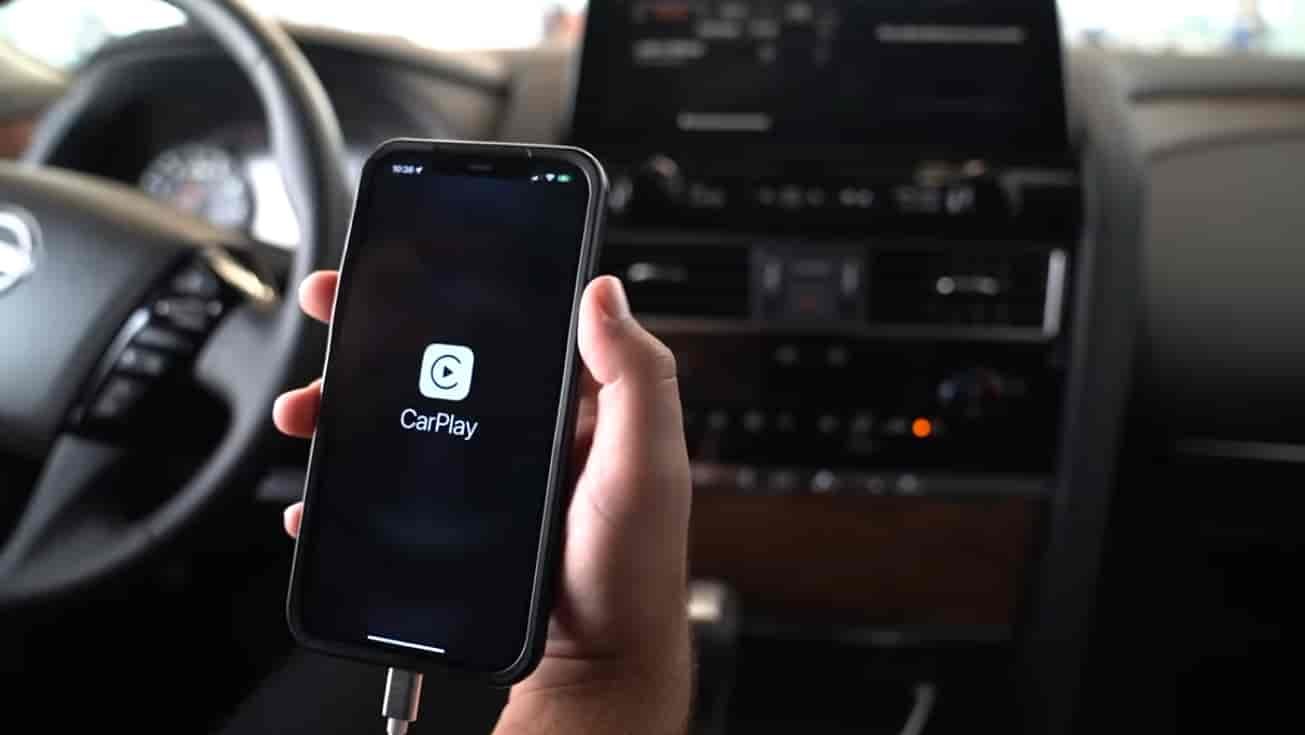
Connecting Apple CarPlay to a Nissan vehicle gives drivers direct access to navigation, calls, messages, music, and apps from their iPhone through the car’s infotainment screen. Instead of handling a phone while driving, drivers can use Siri voice commands, touchscreen controls, or steering wheel buttons to manage everyday functions more safely and efficiently.
The connection process is straightforward, but setup speed depends on several factors. Vehicle model year, Nissan infotainment compatibility, iPhone version, USB cable quality, wireless capability, and software settings all affect whether Apple CarPlay connects immediately or fails during setup. For example, newer Nissan vehicles equipped with NissanConnect may support wireless functionality, while older models require a USB connection.
Many connection problems happen because of simple setup issues rather than system failures. Disabled Siri settings, unsupported USB ports, outdated iOS versions, or old Bluetooth pairings often interrupt the connection process. These issues create delays even when both the iPhone and vehicle technically support CarPlay.
This guide explains exactly how to connect Apple CarPlay to Nissan, which Nissan models support it, common reasons connection problems occur, and 9 practical tips that help establish a faster and more stable setup experience.
How to Connect Apple CarPlay to Nissan in 5 Steps?
To connect Apple CarPlay to Nissan, complete five actions in sequence: prepare the iPhone, connect through the correct USB port or wireless option, enable CarPlay permissions, approve the setup request, and verify activation on the infotainment display. Most connection failures happen because one of these steps is skipped or completed in the wrong order.
Prepare the iPhone before entering the vehicle. Turn on Siri because Apple CarPlay requires voice assistant permissions to operate. Open Settings, navigate to Siri & Search, and enable “Listen for Siri” and “Press Side Button for Siri.” Also verify that CarPlay restrictions are not disabled under Screen Time settings. If restrictions block CarPlay access, the Nissan system may detect the device but fail to launch the interface.
Connect the iPhone using the designated Nissan USB data port. Many Nissan vehicles contain multiple USB ports, but only one supports data transfer for Apple CarPlay. This port usually includes a smartphone icon or CarPlay label near the dashboard or center console. Drivers often plug into charging-only ports and assume the system is malfunctioning. After connection, approve the Apple CarPlay request on the Nissan display and tap “Allow” on the iPhone. Once setup completes, Apple Maps, Phone, Messages, Spotify, and other compatible apps should appear on the infotainment screen.
Which Nissan Models Support Apple CarPlay?
Nissan introduced Apple CarPlay support across multiple vehicle lines, but availability depends on model year and infotainment configuration. Vehicles released before widespread NissanConnect integration may not support Apple CarPlay or may require upgrades.
Several popular Nissan models include Apple CarPlay support. Examples include Altima, Rogue, Sentra, Maxima, Murano, Pathfinder, Frontier, Versa, Titan, and LEAF. Newer model years generally provide broader support and may include wireless functionality. Premium trims often receive infotainment upgrades earlier than entry-level variants.
Drivers should verify compatibility directly through the Nissan infotainment system instead of relying only on model names. Open vehicle settings and locate NissanConnect or smartphone integration options. If Apple CarPlay appears inside connectivity settings, the vehicle supports setup functionality. Vehicle manuals and VIN-based support tools can also confirm compatibility before troubleshooting connection issues.
What Do You Need Before Connecting Apple CarPlay to Nissan?
Apple CarPlay setup requires compatible hardware, updated software, and the correct connection method. Missing one requirement often creates delays even when the vehicle and iPhone technically support the system.
iPhone compatibility is the first requirement. Apple CarPlay works with iPhone 5 and newer devices running supported iOS versions. Older software builds occasionally create pairing problems because system updates introduce new CarPlay compatibility improvements. Updating iOS before setup eliminates many common issues automatically.
Connection accessories also affect performance. Use an original Apple cable or a certified high-quality replacement cable because low-quality charging cables often provide power but fail to transfer data correctly. Wireless Apple CarPlay models also require Bluetooth and Wi-Fi to remain active simultaneously. Users frequently disable one service to save battery life and unintentionally interrupt the setup process.
How Do You Connect Wireless Apple CarPlay to Nissan?
To connect Wireless Apple CarPlay to Nissan, pair the iPhone through Bluetooth first and then allow Wi-Fi communication to complete the setup process. Wireless Apple CarPlay uses both technologies together because Bluetooth starts the pairing process while Wi-Fi handles continuous high-speed data transfer between the phone and the infotainment system.
Open Nissan connectivity settings and activate smartphone pairing mode. On the iPhone, enable Bluetooth and select the Nissan system from available devices. After the pairing request appears, confirm the passcode on both screens and approve Apple CarPlay access. The system may ask whether Wireless CarPlay should automatically connect in the future. Select automatic connection to reduce setup time during later vehicle starts.
The first setup process may take one to three minutes depending on software versions and signal stability. Once paired successfully, the iPhone should reconnect automatically each time the vehicle starts. If automatic pairing becomes inconsistent, remove the saved connection profile from both the Nissan system and iPhone settings before reconnecting from scratch.
Why Is Apple CarPlay Not Connecting to Nissan?
Apple CarPlay usually fails to connect because of software conflicts, cable issues, disabled permissions, or outdated system settings. Most problems come from setup conditions rather than hardware failures.
One of the most common problems is Siri being disabled. Apple CarPlay depends on Siri functionality for communication between iPhone and vehicle software. If Siri permissions are turned off, Nissan may recognize the device but fail to launch the CarPlay interface. Another common issue involves poor cable quality. Many third-party cables only deliver charging power and cannot transfer infotainment data properly.
Software versions also affect connectivity. Older iOS releases and outdated Nissan infotainment software occasionally create compatibility mismatches. Restarting the iPhone, restarting the vehicle system, and installing software updates often solve these issues quickly. Existing Bluetooth profiles can also interfere with new connections because multiple saved devices compete for priority access.
What Are the 9 Tips for Faster Apple CarPlay Connection on Nissan?
There are 9 practical methods that improve Apple CarPlay connection speed and reduce interruptions on Nissan vehicles. Small setup changes often create a noticeable difference in pairing performance.
Use an original Apple cable because certified cables transfer data more consistently. Update iOS regularly because Apple releases compatibility improvements through system updates. Restart the Nissan infotainment system occasionally because cached connection data sometimes creates pairing delays. Enable Siri and remove old Bluetooth profiles because unnecessary device records can interfere with recognition.
Update Nissan software whenever updates become available. Use the primary USB port instead of secondary charging ports because only specific ports support infotainment communication. Re-pair Apple CarPlay if repeated disconnects occur. Disable Low Power Mode because battery-saving features sometimes limit background processes required for wireless communication. Following these nine adjustments often reduces setup failures and creates a more stable driving experience.
USB vs Wireless Apple CarPlay on Nissan: Which Works Better?
USB Apple CarPlay provides stronger connection stability, while Wireless Apple CarPlay provides greater convenience during daily driving. The better option depends on whether drivers prioritize reliability or ease of use.
USB connections transfer power and data simultaneously through a physical cable. This direct connection creates lower latency and fewer interruptions because the signal does not depend on wireless communication. Drivers who frequently use navigation apps, stream music for long trips, or rely on uninterrupted voice calls often experience more consistent performance with wired Apple CarPlay. Wired connections also charge the iPhone continuously during use, which prevents battery drain during extended drives.
Wireless Apple CarPlay removes cable clutter and starts automatically once the vehicle recognizes the paired iPhone. Drivers can enter the vehicle and access maps, music, and messages without plugging in a device each time. This setup improves convenience during short trips and daily commuting. However, wireless systems sometimes experience slower startup speed, battery consumption increases, and occasional signal interruptions in areas with heavy wireless interference.
Connection habits often determine the better choice. Drivers who value simplicity and automation usually prefer wireless functionality. Drivers who want maximum stability and faster response times often continue using USB connections even when wireless options exist. Newer Nissan vehicles support both methods, allowing drivers to switch depending on driving conditions and usage preferences.
Apple CarPlay setup becomes significantly easier when compatibility, software updates, and connection requirements are verified before troubleshooting begins. Most Nissan connection problems come from cable quality, outdated settings, or incorrect setup sequences rather than actual hardware defects. Following the setup process and applying optimization tips reduces connection failures and creates a faster in-car experience.