Many modern Nissan vehicles support Android Auto, allowing drivers to use apps like Google Maps, Spotify, WhatsApp, and Google Assistant directly from the infotainment screen. Once connected, Android Auto creates a safer and more convenient driving experience by reducing the need to handle the phone while driving.
Connecting Android Auto to a Nissan vehicle is usually straightforward, but the setup process depends on several factors. These include the Nissan model year, whether the vehicle supports NissanConnect, the Android version installed on the phone, and whether the connection uses USB or wireless pairing. A low-quality USB cable, outdated infotainment software, or incorrect phone permissions can also prevent Android Auto from working properly.
Most Nissan vehicles require an initial wired setup before wireless Android Auto becomes available. During setup, drivers must enable Bluetooth, Wi-Fi, and Android Auto permissions on the phone. After the first successful connection, many Nissan models can reconnect automatically every time the vehicle starts.
This guide explains how to connect Android Auto to Nissan step by step, how to enable wireless Android Auto, which Nissan models support the feature, and how to fix common connection problems such as black screens, random disconnects, and phone detection errors.
Which Nissan Models Support Android Auto?
Most Nissan vehicles manufactured after 2019 support Android Auto either as a standard feature or through NissanConnect infotainment systems. Popular models with Android Auto include the Nissan Altima, Rogue, Sentra, Versa, Pathfinder, Murano, Frontier, Titan, and Armada. Earlier Nissan vehicles may not support Android Auto unless the infotainment system receives a hardware or software upgrade.
Wireless Android Auto is available on newer Nissan models equipped with updated NissanConnect systems. Models such as the Nissan Rogue, Ariya, Pathfinder, and select trims of the Altima and Frontier support wireless pairing. Older Nissan vehicles typically require a USB connection every time the driver enters the vehicle.
Drivers can verify Android Auto compatibility by checking the infotainment menu inside the vehicle. NissanConnect systems that support Android Auto usually display an “Android Auto” option under smartphone connectivity settings. Another reliable method is checking Nissan’s official compatibility database using the vehicle model year and trim level.
What Do You Need Before Connecting Android Auto to Nissan?
Android Auto requires a compatible Android smartphone, a stable internet connection for initial setup, Bluetooth functionality, and an appropriate USB data cable if the vehicle does not support wireless connection. Most Android phones running Android 8.0 or newer can use Android Auto, while wireless Android Auto generally requires Android 11 or later.
USB cable quality directly affects Android Auto stability because the system transfers continuous audio, navigation, and touch-screen data between the phone and NissanConnect. Low-quality charging cables often fail to transmit stable data signals, causing black screens, random disconnects, or phone detection errors. Certified USB-C or USB-A data cables from brands like Anker, Belkin, or Samsung usually provide more reliable connections.
Some Android phones already include Android Auto as a built-in service, while older devices may require installation through the Google Play Store. Before connecting to the vehicle, drivers should also enable Bluetooth, Wi-Fi, location services, and notification permissions. Android Auto may fail to launch if even one permission is denied during setup.
How Do You Connect Android Auto to Nissan With USB?
Connecting Android Auto to Nissan through USB is the fastest and most stable setup method for most drivers. Start the vehicle and wait for the NissanConnect infotainment system to fully load before connecting the phone. Most Nissan models include a dedicated USB port labeled with a smartphone or Android Auto icon near the center console.
Connect the Android phone using a high-speed USB data cable rather than a charging-only cable. After connection, NissanConnect automatically detects the device and displays a prompt asking whether Android Auto should launch. Drivers must approve the request both on the infotainment screen and on the Android phone itself.
During first-time setup, Android Auto requests several permissions including access to contacts, phone calls, notifications, microphone input, and location data. These permissions allow Google Maps navigation, voice commands, music streaming, and hands-free messaging to function correctly. Once setup is complete, Android Auto automatically opens each time the phone reconnects to the Nissan vehicle through USB.
How Do You Connect Wireless Android Auto to Nissan?
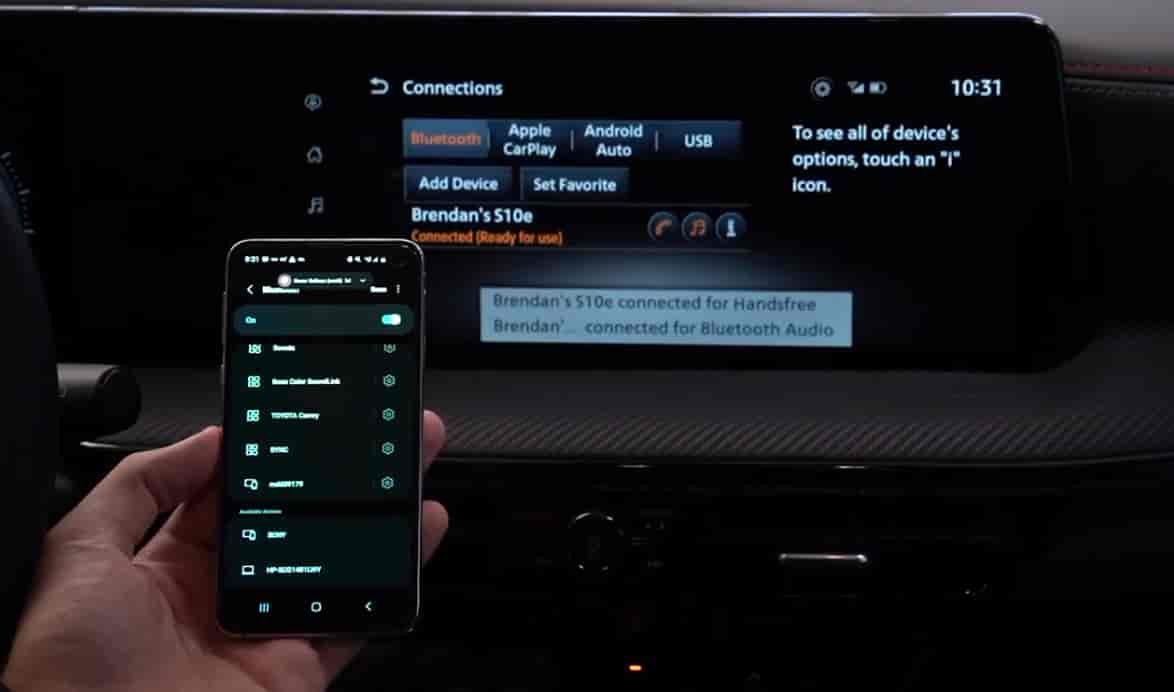
Wireless Android Auto allows drivers to connect their Android phones to Nissan without using a USB cable. The system uses both Bluetooth and Wi-Fi Direct to transfer navigation data, calls, music, and voice commands between the phone and NissanConnect. Most Nissan vehicles require an initial wired setup before wireless Android Auto becomes available for automatic future connections.
To begin setup, enable Bluetooth and Wi-Fi on the Android phone before starting the vehicle. Open the NissanConnect infotainment system and navigate to smartphone connection settings. Select Android Auto pairing mode, then choose the Nissan vehicle from the Bluetooth device list on the phone. After Bluetooth pairing finishes, Android Auto automatically establishes a faster Wi-Fi connection for wireless projection.
Wireless Android Auto reconnects automatically in supported Nissan models whenever the vehicle starts and the phone remains nearby. However, wireless connections consume more battery power and are more sensitive to signal interference than USB connections. Thick phone cases, weak Wi-Fi signals, battery optimization settings, and outdated infotainment software can interrupt wireless stability during driving.
Why Is Android Auto Not Connecting to Nissan?
Android Auto connection failures usually happen because of incompatible USB cables, outdated software, denied permissions, or unstable Bluetooth pairing. In many cases, NissanConnect detects the phone for charging but fails to establish a proper Android Auto data connection because the cable only supports power delivery instead of data transfer.
Random disconnects are another common issue in Nissan vehicles. These disconnects often occur when the Android phone activates battery-saving features that restrict Android Auto background activity. Some Samsung, Xiaomi, OnePlus, and Huawei devices aggressively manage background apps, causing Android Auto sessions to terminate unexpectedly while driving.
Black screen problems usually indicate a communication failure between Android Auto and the Nissan infotainment system. This may happen after Android system updates, Google Play Services updates, or NissanConnect firmware changes. In some vehicles, clearing Android Auto cache files or rebooting NissanConnect immediately restores normal functionality. Software conflicts become more common when the phone operates multiple projection systems such as Android Auto and Smart View simultaneously.
How Can You Fix Android Auto Problems in Nissan?
Restarting both the Android phone and NissanConnect system solves many temporary Android Auto problems because it resets frozen background processes and clears connection conflicts. In most Nissan vehicles, holding the infotainment power button for approximately 10 seconds forces NissanConnect to reboot without affecting saved settings.
Clearing Android Auto cache files can improve connection reliability when the app becomes corrupted after software updates. On Android devices, users can open Settings, navigate to Apps, select Android Auto, then clear cache and temporary storage data. This process removes damaged session files while keeping most personal preferences intact.
Replacing the USB cable is one of the most effective solutions for unstable Android Auto connections. Many charging cables cannot sustain high-speed data transfer required by Android Auto. Using a certified USB 3.0 data cable shorter than one meter often improves connection stability significantly. Drivers should also update Android Auto, Google Play Services, and NissanConnect firmware regularly because compatibility fixes are frequently included in newer software versions.
Is Wireless or USB Android Auto Better for Nissan?
USB Android Auto provides the most stable connection for Nissan vehicles because the cable creates a direct data link between the Android phone and NissanConnect. Wired connections reduce audio lag, minimize signal interruptions, and simultaneously charge the phone during navigation or media playback. Drivers who frequently use Google Maps, Spotify, or voice commands during long trips usually experience fewer interruptions with USB setup.
Wireless Android Auto offers greater convenience because drivers can enter the vehicle and connect automatically without plugging in the phone. This setup works especially well for short daily commutes and city driving. However, wireless projection continuously uses Wi-Fi and Bluetooth simultaneously, which increases battery consumption and may generate additional heat on some Android devices.
Connection stability also differs between the two methods. USB connections are less affected by environmental interference, while wireless Android Auto performance can decline in areas with heavy wireless congestion or when the phone aggressively limits background connectivity. For drivers prioritizing reliability, USB remains the better option. For drivers prioritizing convenience, wireless Android Auto provides a cleaner and faster user experience.
Which Android Auto Features Work in Nissan?
Android Auto allows Nissan drivers to access navigation, calls, messaging, music streaming, and voice commands directly from the infotainment display. Google Maps remains one of the most frequently used Android Auto features because it provides real-time traffic data, lane guidance, speed alerts, and destination syncing from the Android phone.
Google Assistant enables hands-free control while driving. Drivers can say commands such as “Call John,” “Navigate to the nearest gas station,” or “Play Spotify” without touching the phone. This reduces driver distraction and improves safety during navigation or communication tasks. Voice-to-text messaging also allows users to reply to SMS and messaging apps while keeping their attention on the road.
Most major audio applications support Android Auto in Nissan vehicles. Compatible apps include Spotify, YouTube Music, Amazon Music, Audible, Pandora, and WhatsApp. Notification integration allows Android Auto to read incoming messages aloud and provide quick voice-based replies. However, video streaming applications and certain unsupported apps remain blocked for safety reasons while the vehicle is moving.
How Can You Improve Android Auto Performance in Nissan?
Disabling battery optimization is one of the most effective ways to improve Android Auto performance in Nissan vehicles. Many Android phones automatically restrict background processes to save battery life, but these restrictions can interrupt Android Auto communication during navigation or voice assistant use. Drivers should exclude Android Auto, Google Maps, and Google Play Services from battery-saving settings.
Wireless connection stability improves when the Android phone maintains a strong Wi-Fi signal inside the vehicle. Keeping the phone near the center console instead of inside a closed bag or deep storage compartment reduces signal interference. Removing thick metal phone cases may also improve wireless consistency because metallic materials can weaken Wi-Fi and Bluetooth transmission.
Overheating can slow Android Auto performance significantly during long drives, especially when wireless charging and wireless Android Auto run simultaneously. Excessive heat may cause lag, delayed touch response, or automatic disconnects. Using air-conditioned phone mounts, avoiding direct sunlight, and limiting unnecessary background apps help maintain stable Android Auto operation during extended driving sessions.
When Should You Use NissanConnect Instead of Android Auto?
NissanConnect works better than Android Auto in situations where drivers need vehicle-specific functions rather than smartphone-based applications. Features such as vehicle diagnostics, maintenance alerts, remote engine start, climate control settings, and factory navigation integration are handled directly through NissanConnect instead of Android Auto. These systems communicate with the vehicle’s internal hardware in ways Android Auto cannot access.
Factory navigation inside NissanConnect may also perform more reliably in areas with weak mobile data coverage because some Nissan systems store map information locally inside the vehicle. Android Auto depends heavily on internet connectivity for live navigation updates, traffic information, and voice assistant processing. In remote areas with unstable cellular coverage, NissanConnect navigation may maintain route guidance more consistently.
Android Auto and NissanConnect are not direct competitors because they serve different purposes inside the vehicle ecosystem. NissanConnect focuses on vehicle management and manufacturer-level integration, while Android Auto focuses on smartphone connectivity and app access. Many Nissan vehicles allow both systems to operate together, enabling drivers to switch between factory controls and Android Auto applications without disconnecting the phone.
Drivers who primarily use Google Maps, Spotify, and voice messaging usually benefit more from Android Auto during daily driving. Drivers who need remote vehicle services, system diagnostics, or built-in Nissan settings may rely more heavily on NissanConnect. Using both platforms together often provides the best balance between convenience, navigation, entertainment, and vehicle control.